
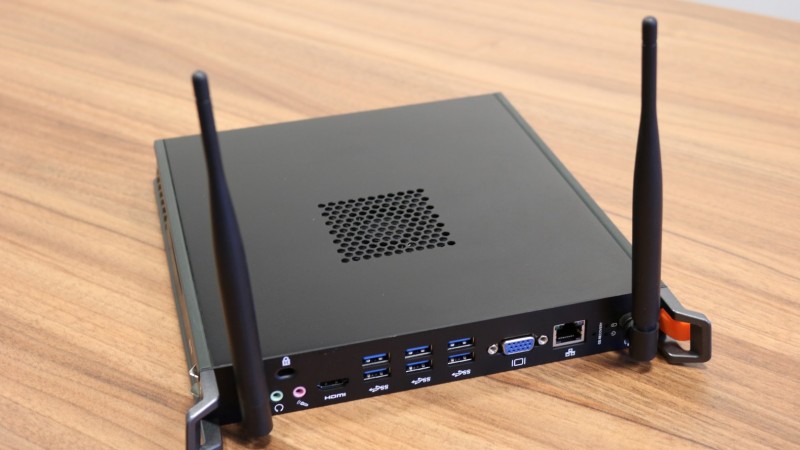
Interactive displays: what instead of an OPS computer?

Almost from the very beginning of their existence, interactive displays have offered the possibility of expansion with an optional computer under the graceful name of OPS. Such a set allowed a large-format touch display to be enclosed in a single housing along with a full-fledged Windows computer, resulting in an efficient all-in-one solution. However, it happens that users are looking for alternatives to this solution. We advise on what the possibilities are.
A word of introduction – “OPS Standard”
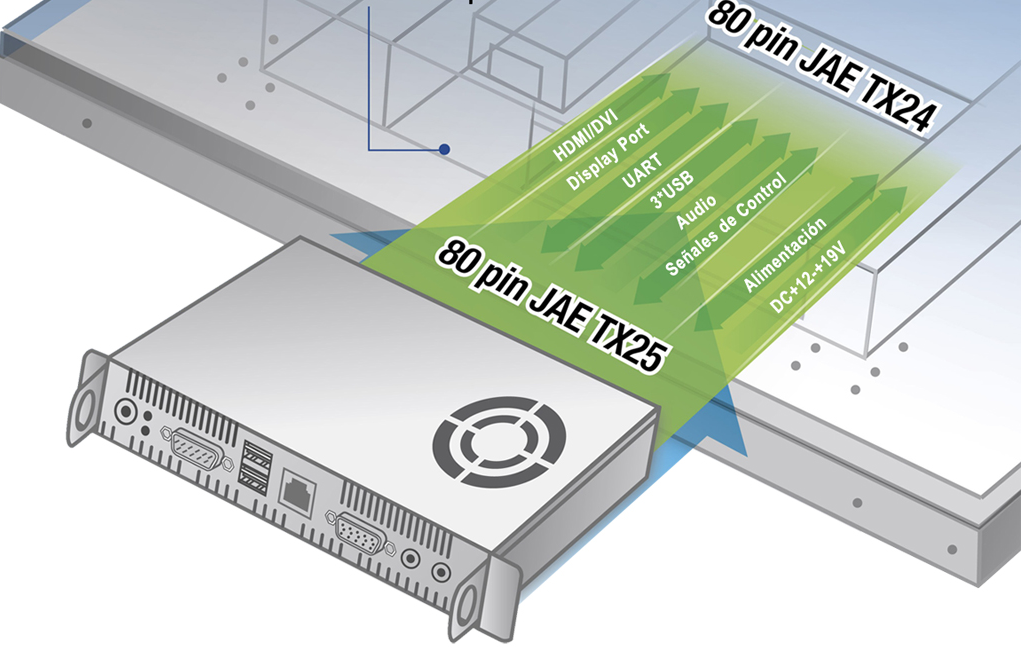
OPS, or Open Pluggable Specification, was created in 2010 by Intel. The creation of the new standard was intended to unify the architecture allowing for the integration of displays and media players to facilitate installation, operation, and reduce implementation costs for solutions in the Digital Signage industry. Was the mission successful? So many years after its premiere, the original Intel standard is still present on the market and used by many manufacturers.
What is much more interesting, however, is that Intel’s Open Pluggable Specification served as inspiration for creating solutions that refer to the same assumptions, but otherwise have little in common with the original. That is why the phrase OPS standard in the header is in quotation marks. Many manufacturers have developed their own “OPS standard,” which causes many misunderstandings. Therefore, today in nomenclature, the term OPS (or OPS computer) often functions as a description of hardware that can be built into the interior of a digital signage display or an interactive display.
What instead?
1. Built-in Android – always at hand
The simplest solution is to use the built-in capabilities of the interactive display. The Android system built into all modern interactive displays allows for satisfying most of the basic needs of display users, thanks to tools such as:
- built-in web browser,
- the ability to play audio, video, image, PDF, or even Office files,
- built-in whiteboard mode,
- the ability to install Android applications (usually to a limited extent).
Such a package of tools allows you to use the interactive display as a multimedia educational center, although it has certain limitations resulting from the fact that most educational tools are dedicated to the Windows system. Also, more complex websites (e.g., educational platforms) may have problems working on Android browsers.

Pros
+ always on board (for free)
+ ideal for basic tasks
+ convenient whiteboard mode
+ fast operation and no need to connect additional devices
+ does not consume any additional energy
Cons
– limited functionality: not all applications and programs can be installed, selected multimedia file formats are not supported
– less smoothness of the browser and file player (in the case of larger files)
– no configuration options
– you need to connect a LAN cable or Wi-Fi module to get internet access
2. Laptop or desktop computer
A computer – whether in the form of a laptop or a desktop computer – is present in every school. It often also has educational software installed that is used by teachers. Is a school forced to modernize its computer equipment when purchasing a modern interactive display? Absolutely not! Almost any computer, even an older one, can be connected to an interactive display and controlled using the touch screen. It is only important that it is equipped with the appropriate operating system, a USB port, and a VGA, HDMI, DVI, or DisplayPort video output.
Returning to the operating system: the recommended systems are those from the Windows family, preferably from version 7 onwards. The connection itself between the display and the computer is simple, and the appropriate cabling is always included in the package with accessories. Additionally, every good display has educational software running on the Windows system included in the set, which means the user can use the whiteboard mode, subject-specific tools, and other amenities available in the application.
Pros
+ works even with older computers
+ allows you to use previously purchased educational software and other resources
+ larger library of applications and software (Windows system), greater support for non-standard formats
+ dedicated operating modes for touch screens (Windows 8 and higher systems)
+ generally faster performance compared to built-in Android modules
+ usually no training required for operation
+ usually easier access to the internet (e.g., built-in Wi-Fi in laptops)
+ in the case of a laptop, the ability to easily disconnect and move to another room
Cons
– requires connection and configuration (especially in systems other than Windows 7, 8, and 10)
– external solution, requires a minimum of two cables between the computer and the display
– slower performance on older hardware
– highest energy consumption among the presented solutions
3. Intel Compute Stick
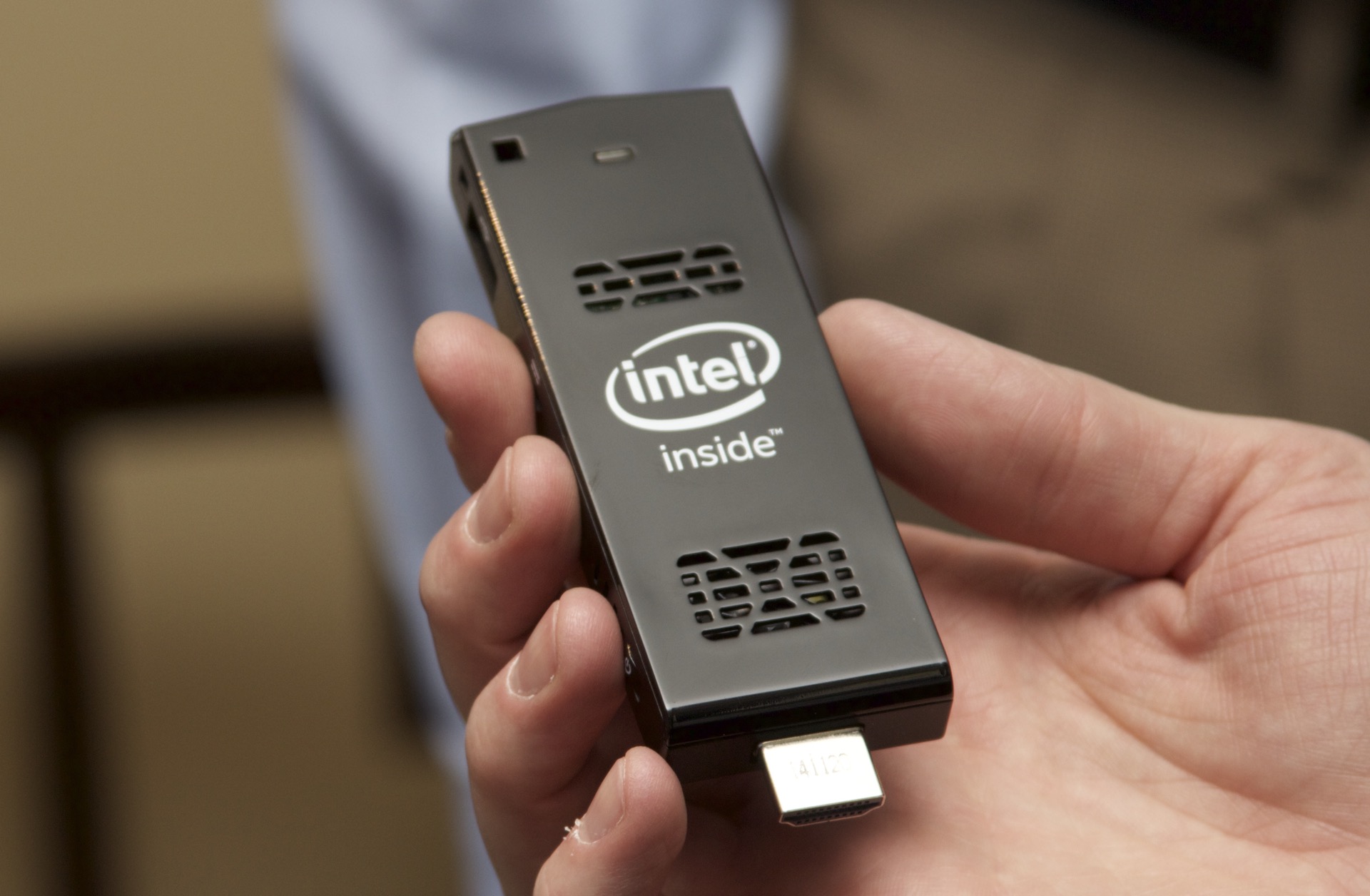
Until recently, the Intel Compute Stick would have been included in a list of curiosities, but we managed to get this solution, test it, and be pleasantly surprised! The Compute Stick is a miniature computer based on the Windows system that connects directly to the HDMI port, additionally powered by a USB cable. Its small dimensions make it easy to hide behind the display along with all the cables.
Unfortunately, miniaturization has its drawbacks, the most serious of which is the not-so-impressive specification. In combination with an interactive display, we will perfectly handle file playback or PowerPoint presentations, but even a few open browser windows can cause the Intel Compute Stick to get out of breath, which will significantly reduce the comfort of use.
Pros
+ small dimensions make it a good alternative to an OPS computer
+ based on the Windows system, which gives access to significant resources and applications, also does not require training for operation
+ relatively inexpensive solution – usually sold with Windows 10 installed and activated
+ built-in Wi-Fi gives instant access to internet resources
+ surprisingly works well with touch screens – ideal for less demanding scenarios
+ very low energy consumption
Cons
– weak parameters cause it to quickly get out of breath and slow down the entire system
– limitations related to parameters (hard drive size/processor and graphics speed) mean that we will not run more complex programs on the Compute Stick
– basic configuration related to connection required
– small selection – only two official versions available
4. Intel NUC or other mini-computers
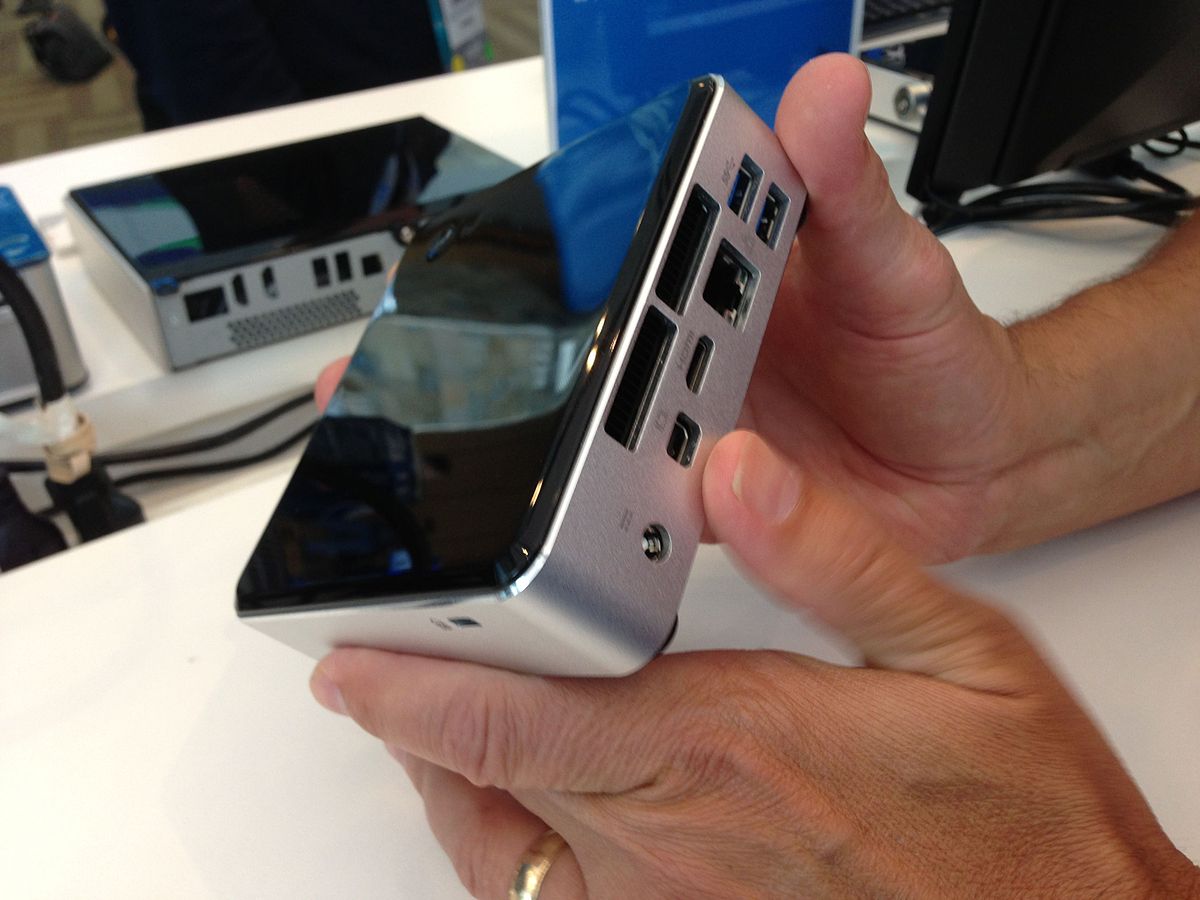
The fact that Intel is a leading “standard manufacturer” can be inferred from the next item with Intel in the name – namely NUC. These mini-computers are extremely versatile, and their potential is much greater than in the case of Compute Sticks. All because of significantly higher performance and definitely greater configuration possibilities. The Intel NUC is still a very compact solution (dimensions usually do not exceed 12 x 5 x 12 cm), which can be mounted next to the display or on the back. At the same time, computers in the Intel NUC standard are much more expensive than the Compute Stick, and the prices of more advanced configurations make us start thinking whether a laptop or OPS would be a better solution.
Fortunately, not only Intel produces solutions in this architecture, thanks to which slightly more affordable alternatives are also available. Like all such computers, they usually work based on the Windows system, which will cause them to share all the advantages (and disadvantages) flowing from this. They also have definitely more connection possibilities and the possibility of mounting in the VESA standard.
Pros
+ the alternative most similar in quality to OPS, definitely more efficient than the Compute Stick
+ freedom of configuration (both hardware parameters and system)
+ small dimensions and interesting housing design – goes well with Avtek TS Pro4K or CTOUCH Laser Air +
+ mounting using VESA and significant connection possibilities
+ low energy consumption
Cons
– high price compared to traditional desktop computers or even some laptops
– basic configuration related to connection to the display required
– cheap configurations may have performance-related problems
– hard to find so-called “ready-made” units containing a hard drive or operating system
And how does the OPS computer compare to this?
After discussing the alternatives, it is worth confronting them with the “original,” i.e., the OPS computer. This solution has managed to become widespread in interactive displays and tempts with the advantages flowing from the integration of both pieces of equipment. No need to connect cables, quick switching on and off together with the interactive display, or large connection possibilities are a great incentive for those who are just building a “multimedia and interactive center of education or business.” Using the Windows system obviously gives huge possibilities, but on the other hand, we have a limited choice when it comes to available configurations.
Pros
+ perfectly integrates with interactive displays – a true all-in-one solution
+ one-time installation, no cables, fits into the display housing
+ together with the installed Windows 10 system, it constitutes the most user-friendly configuration of an interactive display
+ turns on and off together with the display, in selected models (Pro3/Pro4K) it integrates with USB ports on the front of the display
+ very large connection possibilities
+ OPS can be moved between displays (provided they are compatible models)
+ relatively low energy consumption and silent operation
+ available configurations are efficient, and the number of versions allows for matching to applications
Cons
– practically no configuration possibilities – only specific specifications available
– less versatility – if a school has interactive displays from different manufacturers, there is no possibility of relocating the OPS itself
– similar configurations of desktop computers and (sometimes) laptops are cheaper
And what do we not recommend?
There are several options that, unfortunately, we cannot recommend, and these include various types of microcomputers, such as Raspberry Pi, Tinker Boards, or industrial mini-computers. The main reason is the lack of the ability to install Windows (or a full-fledged version), limitations related to performance, or finally hardware limitations. Of course, the appropriate configuration can cause an interactive display to work with such a device, but the comfort of work, lack of support for applications, or hardware limitations may unnecessarily discourage users from working with the display.
The basic functionality obtained in this way is, in turn, offered by the Android module built into almost every display, which additionally reduces the sense of existence of such configurations.
Summary
The most important thing in an interactive set containing a display is matching the solution to existing needs and maximizing work comfort. For some of you, the built-in Android will probably be enough – the cheapest and pleasant-to-use solution. In turn, those who like to work in the Windows system may prefer OPS, if they have recently purchased computer equipment – they can simply connect it to the display and enjoy full functionality. We sincerely hope that the above article will help you in choosing the right solution for your interactive set with a display. If you have other suggestions or conclusions – share them!