
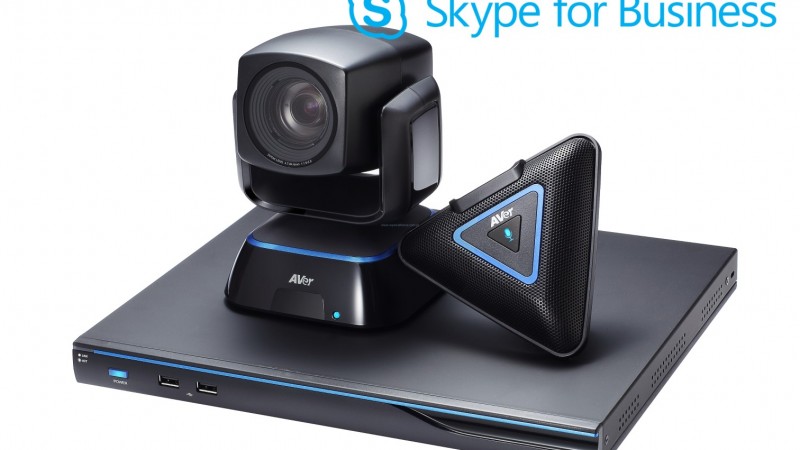
Aver and Skype for Business? Now it’s simple!

Whatever you say about Microsoft solutions, you have to admit that businesses use them extremely actively. The same is true for video conferencing software like Skype for Business. As part of the popular Office suite, the Skype platform has become the primary means of communication for many companies. The problem arose when dedicated video conferencing sets and Skype were to participate in the same call.

It was either impossible or required purchasing extremely expensive equipment. The situation changed when Aver partnered with the Redmond Giant, enabling seamless, cross-platform video conferencing using H.323, SIP, and Skype for Business protocols.
In the past
The most popular Aver video conferencing system configurations consist of a bridge, which is the EVC300/350/900/950, and so-called end-points in the form of the EVC130PTZ or the EZMeetup application. They allow for comfortable, high-quality video conferencing using the most popular standards – H.323 and SIP. For users who do not have an EVC set, EZMeetup came to the rescue – free for mobile devices, licensed for computers.
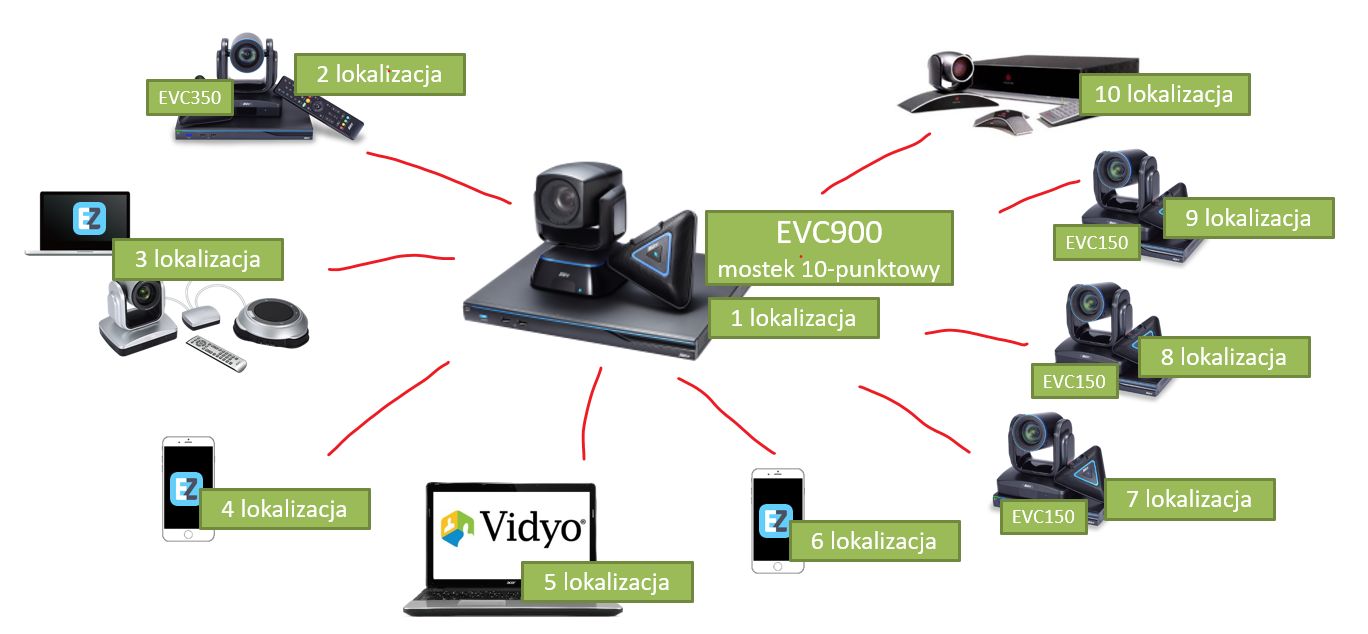
Such a system works great for internal organization calls, e.g., between different branches. For external calls, as long as the other party has a hardware video conferencing set, such a system also works perfectly. However, there is still a multitude of Skype for Business users who could not connect with professional video conferencing sets (and basically with no one else either).
Fortunately, starting from the fourth quarter of 2017, this is now possible. How does it work?
Now
Both a new user of AVer systems and an owner of EVC300/350/900/950 systems has two options for their configuration to start supporting Skype for Business.
1. Including an Aver SVC unit in the system
The SVC series debuted in mid-2017, offering two models:
- SVC100 – end-point,
- SVC500 – bridge for 6 locations.
Detailed specifications of the discussed models are available in the link below.
Aver SVC series – specifications
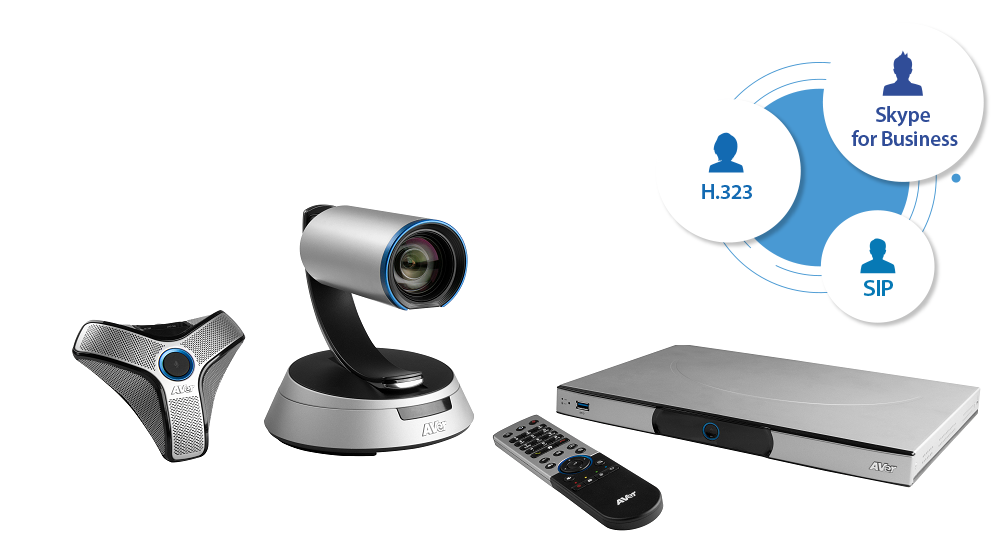
Both models are equipped with a number of interesting features, including built-in 32 GB memory, YouTube video conferencing streaming, and support for Skype for Business. Therefore, if someone is planning to expand their system, they should definitely take a look at the SVC series, which, being one of the locations in the entire system, can introduce participants using business Skype to the video conference. This is a solution not only for AVer system owners – it will also work in configurations based on systems from other manufacturers.
2. Expanding the EVC bridge with Skype support
Good news for owners of systems based on EVC series bridges – these units can be updated to add Skype support. It should be noted that the firmware update opens up the possibility of working with Skype, but that’s not all. To make this communication a reality, you need to purchase a license from Aver (available in the offer) and have a Microsoft account with a Skype for Business license.
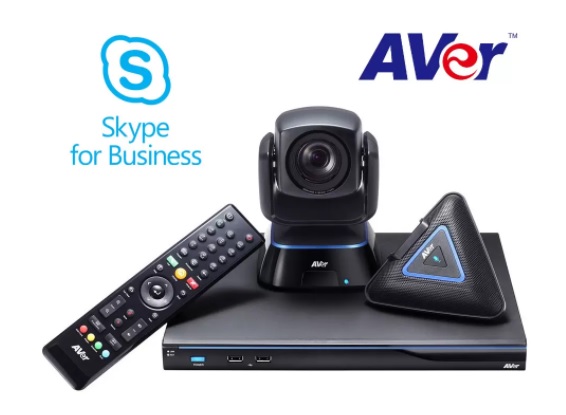
However, by far the most cost-effective solution will be to purchase a new Aver EVC300 unit with a Skype for Business license. Such a set is now available at an extremely attractive price.
How does it work?
To begin with, it is worth noting that only the SVC series has built-in Skype for Business support. In this case, to start a video conference with SfB users, you must first log in to a Microsoft account that has Skype in the package from the SVC unit level. In the case of the EVC series, before the steps described above, you must update the software and obtain a key that unlocks communication with SfB.
After performing all necessary configuration steps, the Aver system user gets access to the Skype for Business network: a contact list and the ability to make and receive calls. Sending text messages is not possible.
Capabilities and limitations
- Both SVC and EVC units can receive and send video and additional content – e.g., a presentation. From the Aver device side, this can be any device connected to one of the input ports, e.g., a visualizer, computer, or additional camera. In the case of Skype for Business, you can share, for example, a computer desktop or a presentation.
- You can mix protocols – in one video conference, locations with other Aver units, video conferencing systems from other manufacturers, cloud-based software solutions (Vidyo, Zoom, and similar), EZMeetup applications, and of course Skype for Business can participate. It is important that these solutions operate based on one of the supported standards: H.323, SIP, and Skype for Business.
- EVC units cannot participate in Skype conference calls (two or more locations). SVC units do not have this limitation.
- Both EVC300/350 and EVC900/950 can handle a maximum of 4 locations with Skype for Business. In the case of EVC300/350, to handle 4 calls with Skype, you need to expand the unit by another 2 locations (a matter of purchasing a license, which is in the offer).
EVC series vs Skype for Business
- transmission to SfB in resolution up to Full HD at 30 frames per second (parameters depend on connection quality)
- additional content (e.g., connected visualizer) is sent in XGA resolution, max. 5 frames per second
SVC series vs Skype for Business
- in the highest version (bridge expanded to 16 locations) it will support 15 Skype locations
- transmission to SfB in resolution up to Full HD at 30 frames per second (parameters depend on connection quality)
- additional content (e.g., connected visualizer) is sent in 720p resolution, max. 5 frames per second
EVC – how to prepare the unit for Skype for Business support?
All owners of EVC series bridges must perform a few simple steps to make their systems capable of supporting Skype. This process consists of 3 basic steps.
- Software update
- License purchase and activation
- Logging into a Microsoft account from the EVC system menu
To ensure all steps go smoothly, we have prepared short instructions for you.
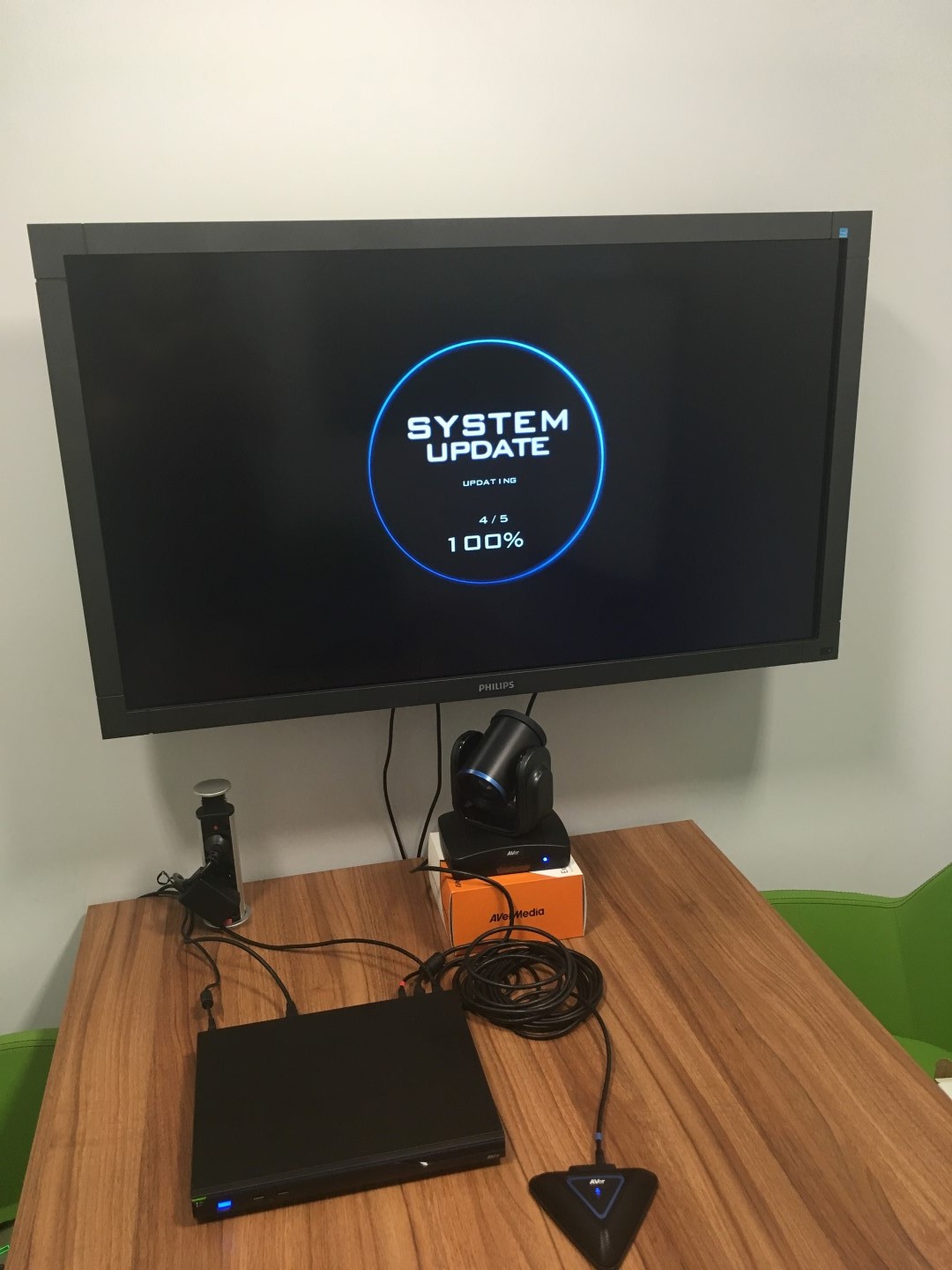
1. Software update
Software update file
To update the software, you need a file containing its latest version. To download it, go to the aver.com website and click the appropriate options in the download center.

The update file is the same for EVC300/350/900/950 systems and can also be downloaded directly HERE.
Uploading the update
The simplest way is to connect a USB memory stick with the update file to the front EVC port. The pendrive must be formatted to the FAT32 file system, and we suggest that it be the only file on the drive. After connecting the pendrive, the system should automatically detect the update and ask if we want to update to the latest version. Just confirm and wait a few minutes – the system will update without our intervention.

The update can also be done remotely, from the convenient Aver EVC web interface. How to launch WebTool? Just have a computer on the same network as the EVC unit and a web browser. In the address bar, enter the IP address of the unit (internal), log in to the interface, and you have a convenient control panel at your disposal. Note! The unit must be turned on for the interface to be active. A video showing the procedure is available below.
2. License activation
If we already have a license for Skype for Business, we just need to activate it from the device level. This involves entering the license key in the appropriate field in the menu and clicking the activate button.
Here again, there are two options – from the EVC device level, where we have to use the remote control, or from the web interface level, where we can use a keyboard. From experience, we recommend the second option, which saves a lot of time when typing the 24-character key. You can also use the copy-paste method.
The entire process is shown in the video below. For activation to be successful, the system must be connected to the internet and cannot be in the middle of a video conference call during activation.
3. Logging into a Microsoft account from the EVC system menu
To make Skype for Business calls and have access to the contact list, you are required to log in to a Skype account (usually it is a Microsoft account with SfB in the package). This process can be performed from the device menu or the web interface. Again, we recommend the latter method, which will allow for much faster entry of account data. How to do it? The video below should clear up any doubts.
Establishing a connection
After performing the full configuration, it is time to make the first call with a Skype for Business client. Interestingly, if we use a company SfB account, Aver will import contacts and allow for quick contact with a person from the list. The chat function (text messages) is unavailable.
We present the process of establishing a connection for you in the video below.
Summary
Until recently, a difficult and expensive to implement connection between hardware video conferencing and Skype for Business, thanks to Aver, is becoming something natural and seamless. We invite everyone interested to test Aver video conferencing systems. For this purpose, we have 3 sets prepared for rental:
– SVC500 (built-in SfB support),
– EVC150,
– EVC350 (built-in SfB support).
What’s more, to fully show the capabilities of these systems, we encourage you to test together, during which we will connect with you, conduct a remote presentation, and answer any questions.