
Avtek TouchScreen and wireless internet

You have often asked us how to connect the Avtek display to a wireless network so that you can use, for example, the built-in web browser without the need to connect a LAN cable. Today we show you how to do this with minimal expense.
Android is one of the key advantages of the new series of Avtek displays. The built-in system proves to be a useful tool especially when the user needs to quickly turn on the display and use the annotation features or the web browser. Until recently, the latter was only possible directly from the display after connecting a LAN cable.
Taking into account the specifics of Android, which, like Windows, can recognize connected devices, we decided to check if it is possible to connect an external Wi-Fi network card using one of the USB ports.
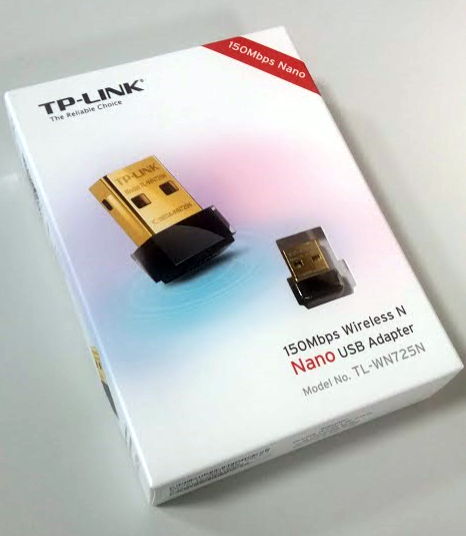
For our tests, we used a standard TP-Link TL-WN725N Wi-Fi network card – available in online stores starting from 26 PLN, and an Avtek TouchScreen Pro display with a diagonal of 65 inches.
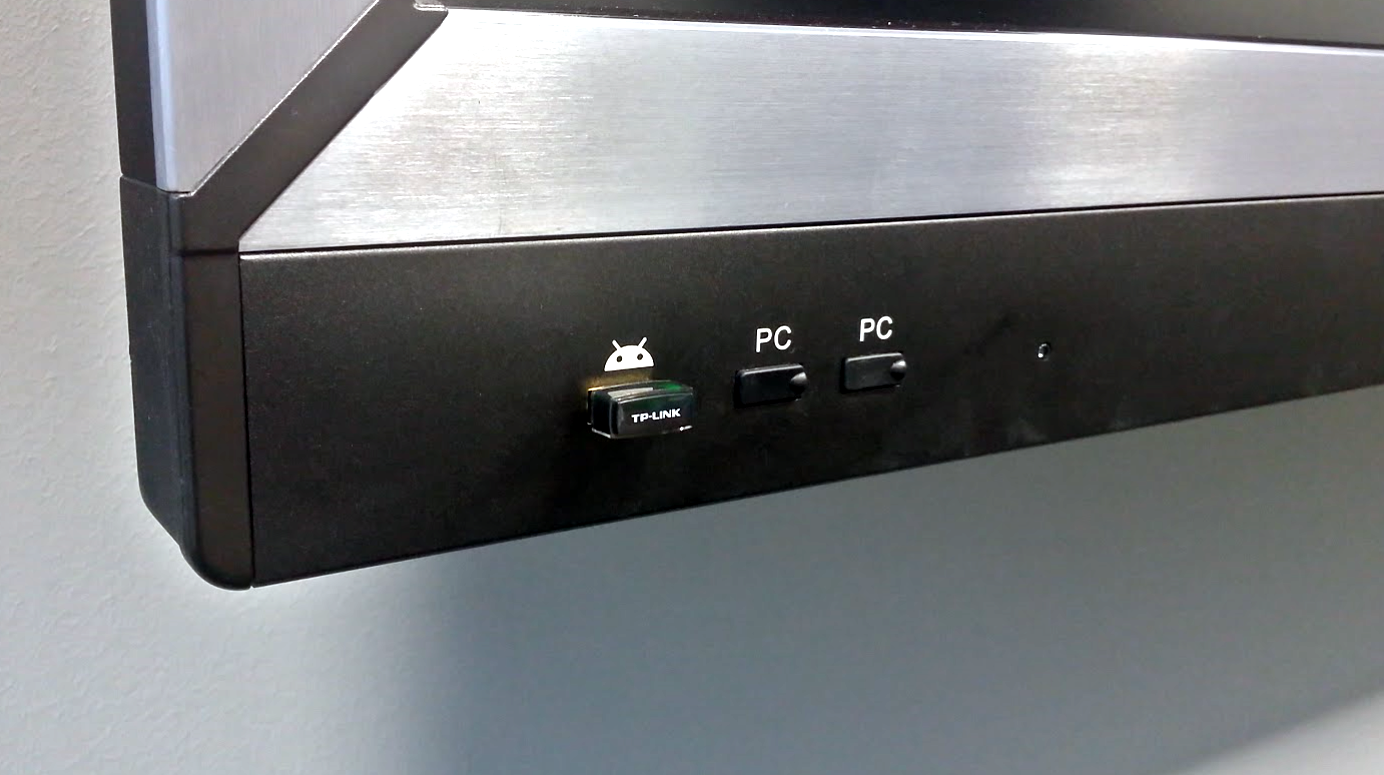
We plugged the card into the USB port on the front of the display (specifically to the port dedicated to Android) and… Well, what happened?
After switching to the Android channel, we do not get any prompt about a new device or the option to choose a network. To see the result of connecting the network card, you need to check the network settings available from the Settings panel, which can be found on the Android home screen.
Under Ethernet settings, a new row appeared with Wireless settings (1). First, we turn on WiFi support (2), then we click the SSID option (3) to choose the one and only network from the available ones. All that remains is to enter the password, wait a moment for the settings to download, and we are connected.
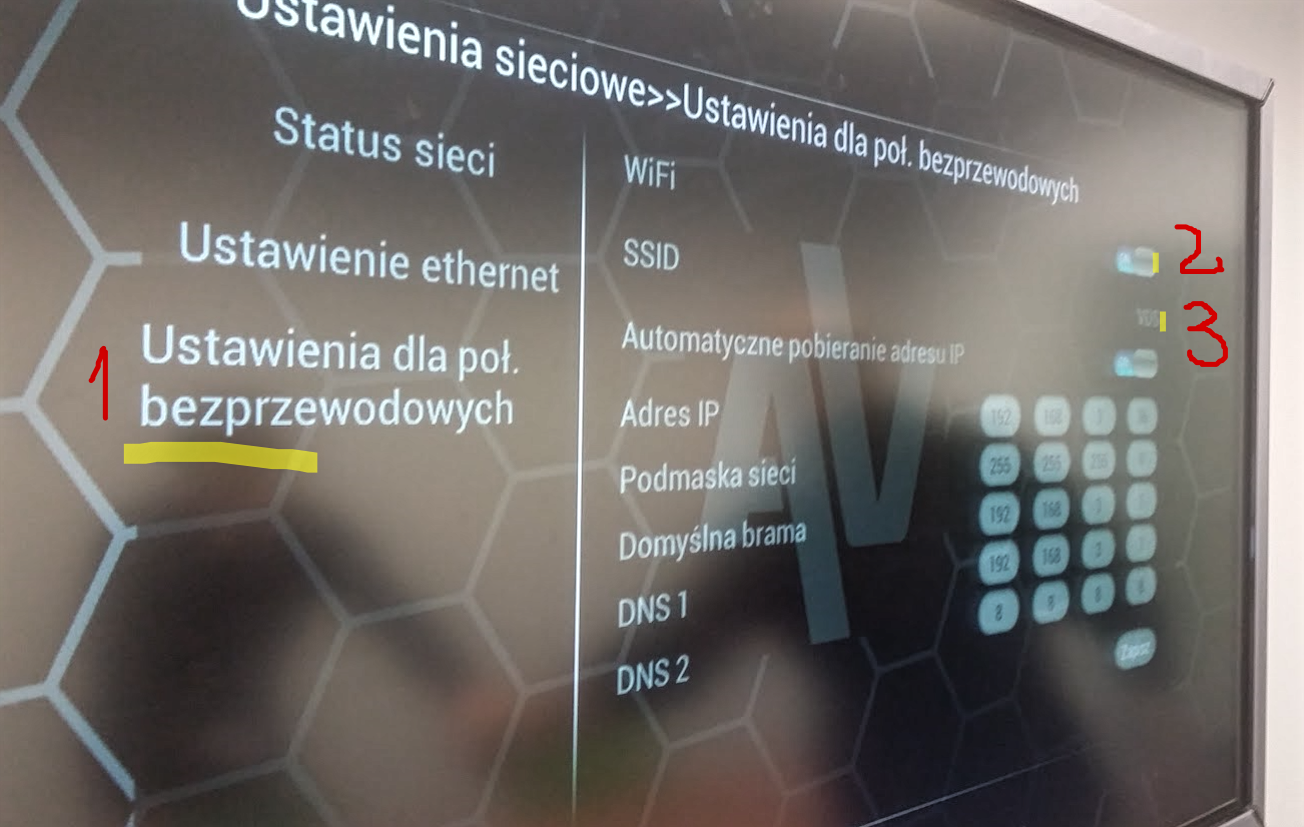
In addition to DHCP settings (Automatic IP address acquisition), we have the option to manually specify network settings – this will be especially appreciated by users who have a network configuration requiring individual settings.
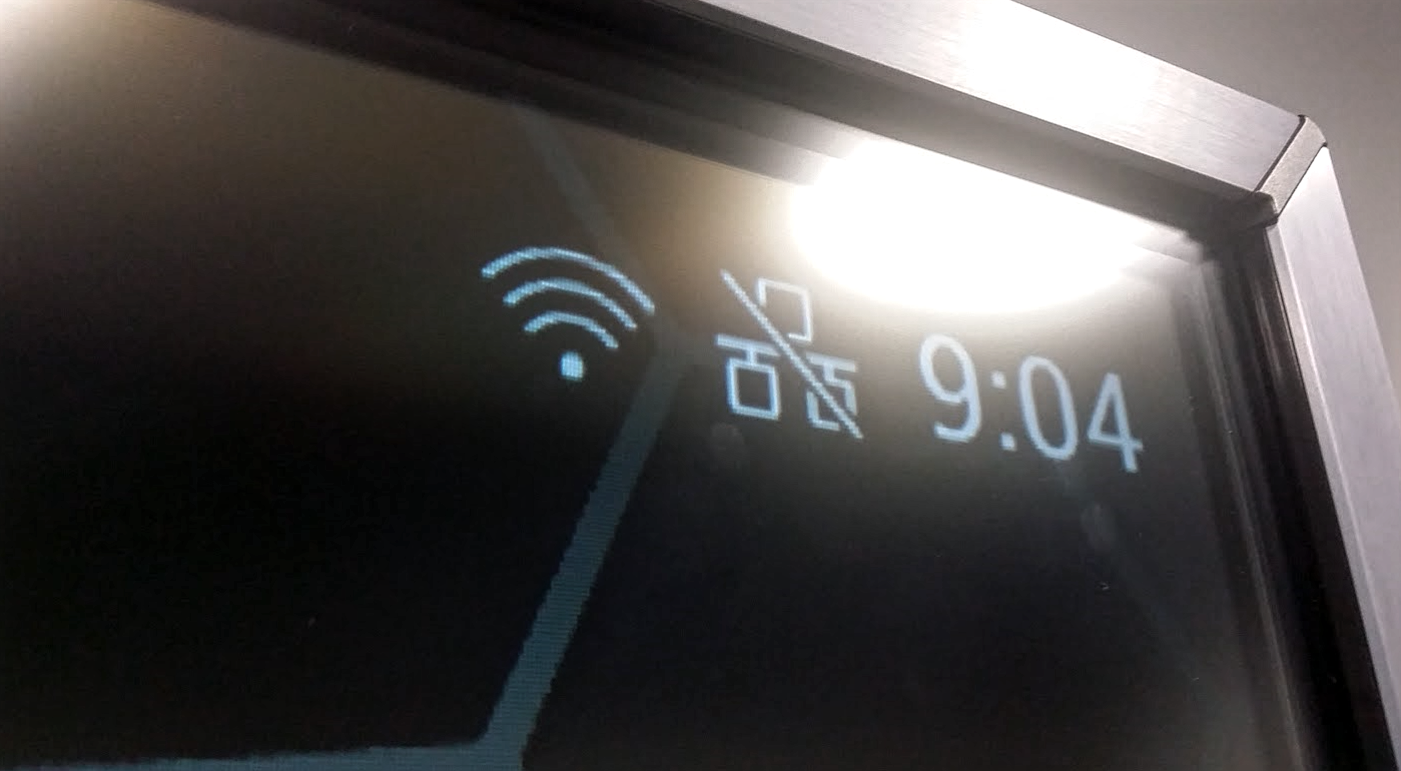
After connecting to the network – in the upper right corner of the Android home screen – you can notice an icon suggesting that the display is wirelessly connected.
Of course, we didn’t miss checking whether the display is indeed connected to the internet now. To do this, we opened the browser built into Android, typed avtek.eu in the address bar, and the view below appeared before our eyes.
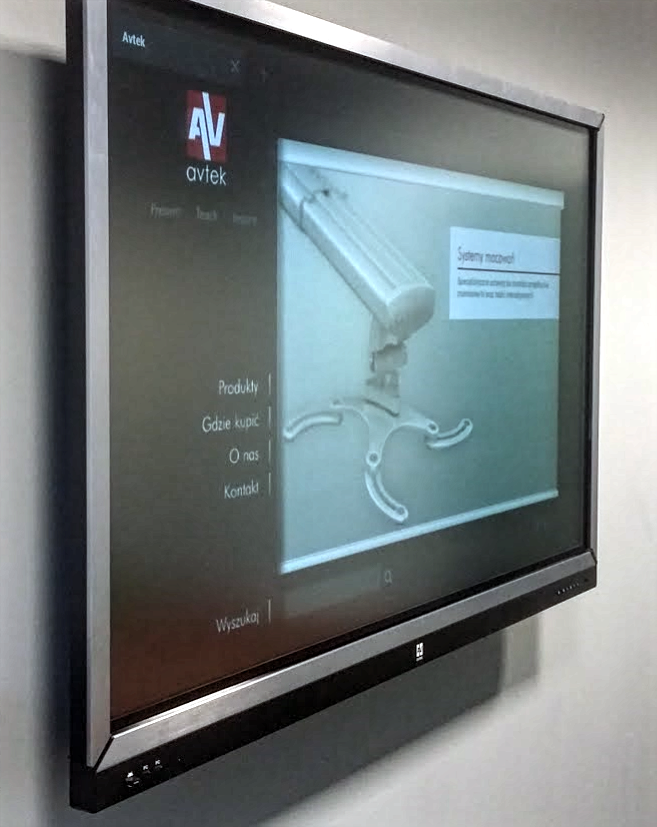
Summing up, we can boldly state that the test was a complete success. Using an inexpensive Wi-Fi network card, we managed to make the Avtek TouchScreen Pro series display an even more comprehensive solution that offers internet access without the need to connect a computer or network cables.
Our tests were limited to one model of network card, but we cannot rule out that other cards will also work without any issues. If you have already tested such solutions – be sure to let us know!