
Installing a system on an OPS computer? Nothing easier!

How to install an operating system on an OPS computer built into an Avtek TouchScreen monitor? – this is one of the most frequently asked questions among beginners using this set. We suggest how to do it step by step.
Which operating system?
The Avtek interactive monitor is designed to work with Windows, Linux (selected distributions), and MacOSX operating systems. However, to unlock the full potential of this hardware, we recommend using the Windows 10 operating system.
Why Windows 10?
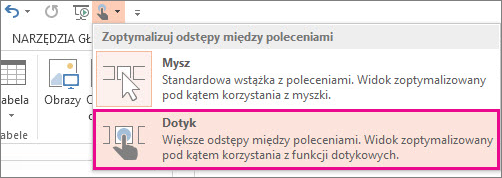
Windows 10 is prepared for touch support, which comes with numerous conveniences (primarily a specially designed interface and tablet mode) and no need to install drivers for touch monitors or perform calibration. The most important factor, however, is the large number of available educational and business applications that we can conveniently operate using the touch screen. Simply put – the vast majority of programs used in education or business are available primarily for Windows 10.
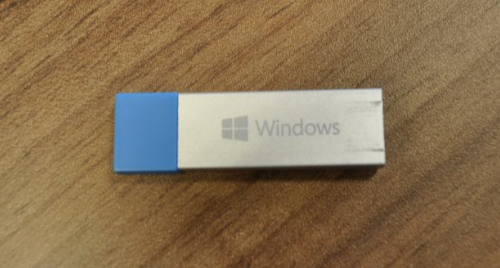
A great convenience is also the distribution method – the Windows 10 installer is provided in the form of a USB flash drive (USB flash memory) – which significantly facilitates installation on computers without a DVD drive, such as the Avtek OPS Pro.
Preparation for installation
1. Preparing a bootable USB drive
If you have a freshly purchased Windows 10 system on a USB flash drive – you can skip this step.
If the system you have is on a DVD or in the form of a disk image on your computer’s hard drive, you must create a so-called bootable USB drive. Several (or more) comprehensive guides have already been created on this topic – so we are redirecting you to one of them.
How to create a bootable USB drive?
2. Necessary accessories
In addition to the Windows system, we must remember to have the license key for it on hand (this is not required, it can be entered after installation).
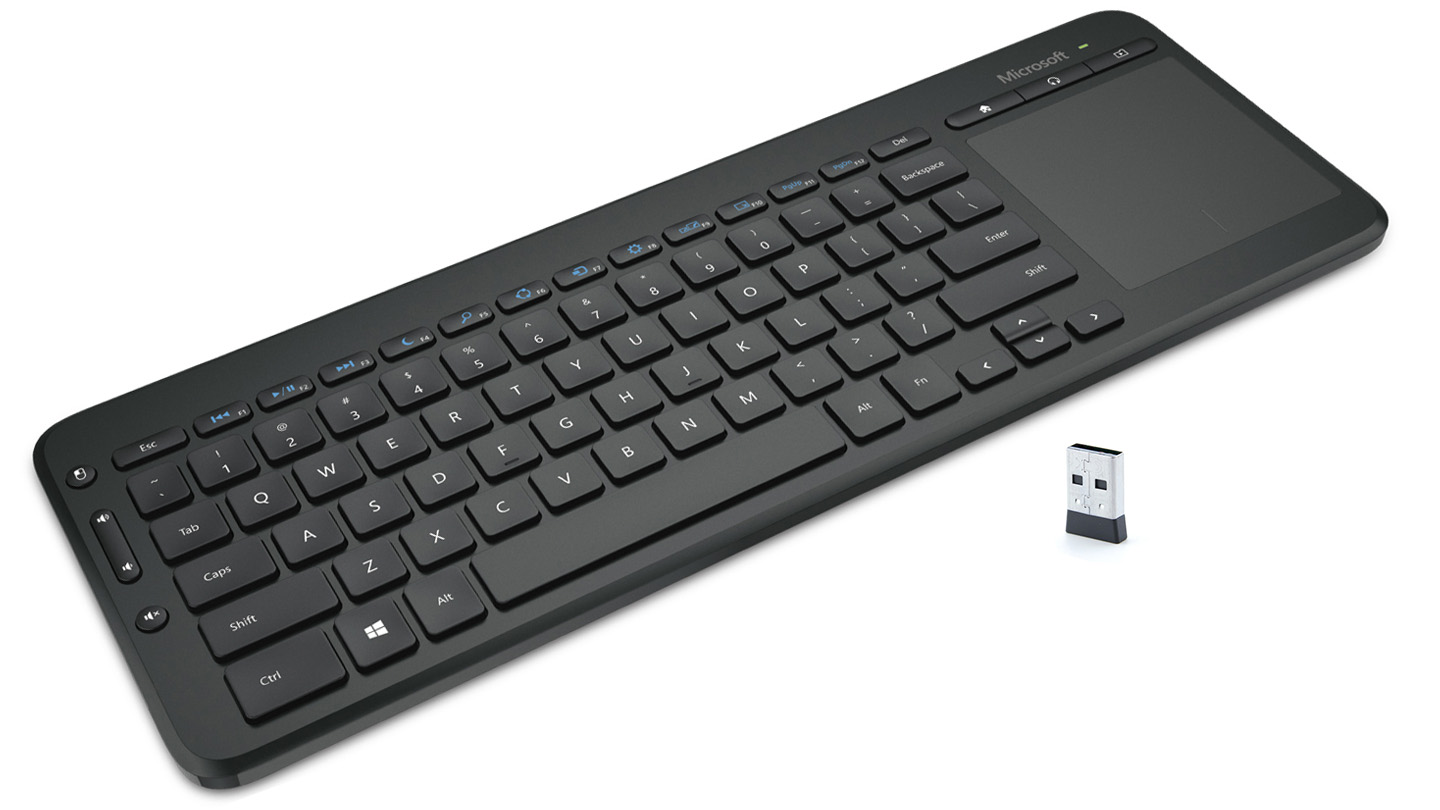
The second accessory is a USB keyboard – it can be either a standard wired keyboard or a wireless solution. It is important to connect the USB cable or the wireless dongle to the USB port on the OPS computer. The keyboard is essential at the very beginning of the installation and when entering the license key.
Installation
At the very beginning, it is necessary to install the OPS computer in the Avtek monitor. We described the process in one of our instructional videos from the Avtek TouchScreen Pro series.
If the computer is already installed in the monitor, we can get to work.
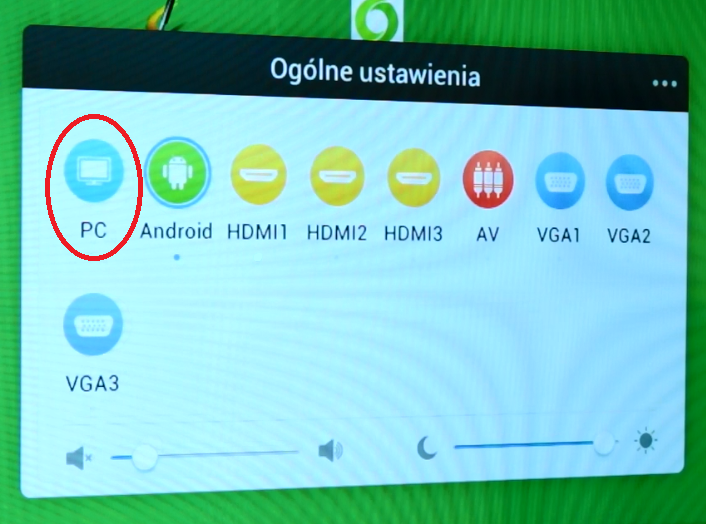
- Turn on the monitor and wait for it to fully boot up. Enter the source selection menu and check if the computer has been detected by the monitor. Do not switch the source to OPS yet.
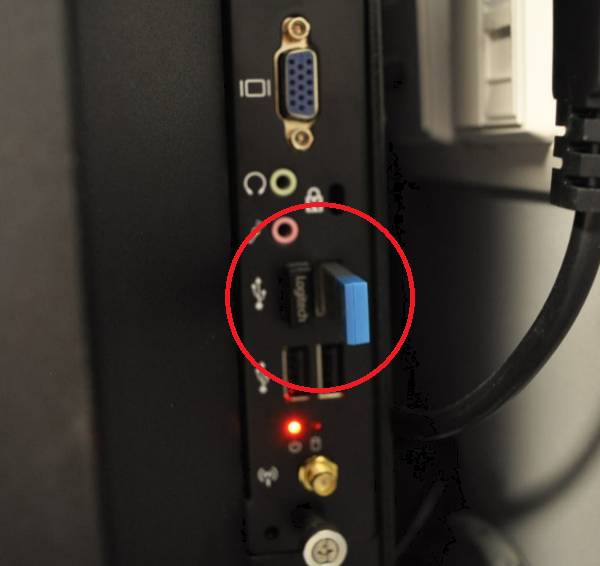
- Connect the USB drive with the Windows system and the keyboard to the OPS computer. Attention! Both items must be connected to the USB ports located on the OPS computer, not on the interactive monitor casing!
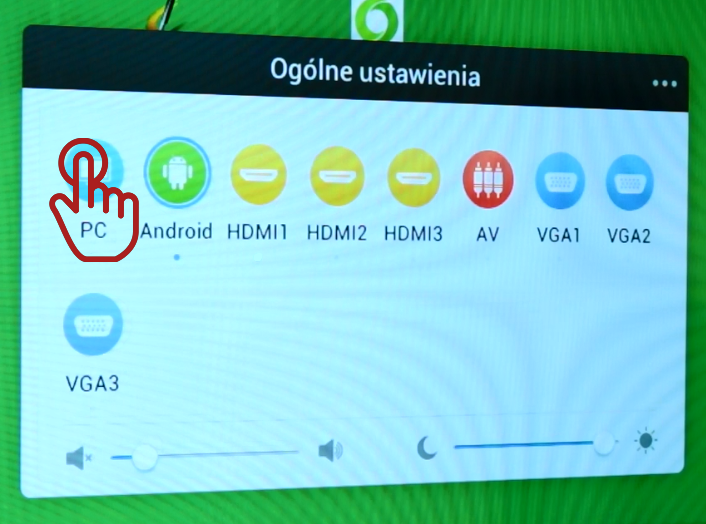
- Prepare the keyboard so it is within reach. Enter the source selection menu and switch the source to PC.
- Next, on the first screen, quickly press the F7 key on the keyboard several times to bring up the Boot menu.
On some types of keyboards, you must press the F7 and Fn buttons simultaneously.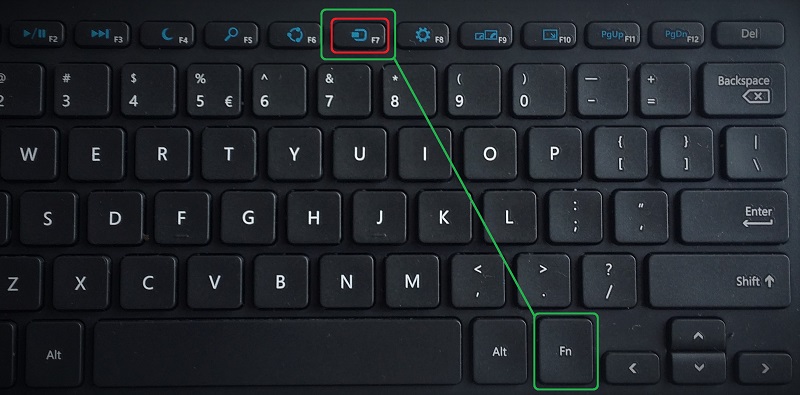
- From the available options, select the connected USB drive. Usually, this will be option no. 2. The hard drive, which is not needed at this stage (do not select it), has Samsung in its name.
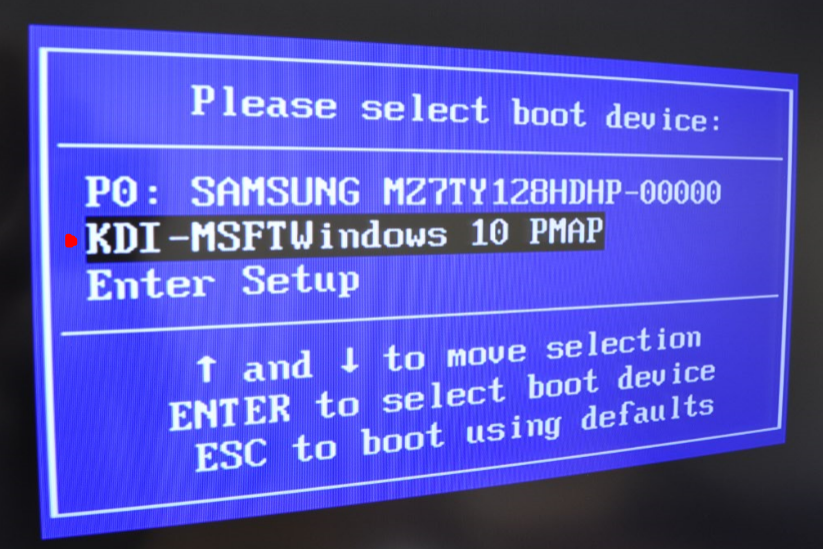
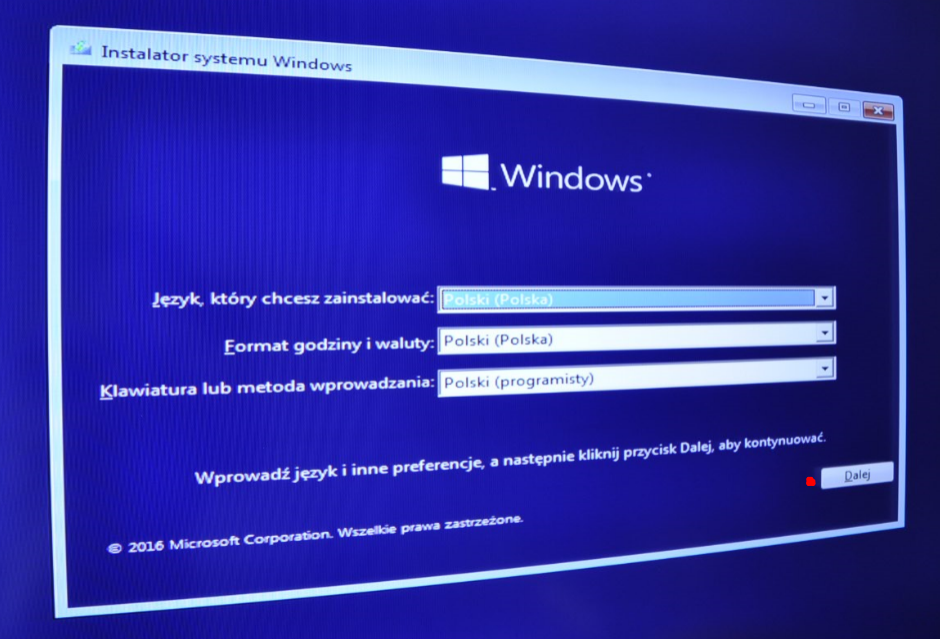
- The process of loading files from the USB drive to the computer’s hard drive begins. This will take a moment. Then, the language selection screen will appear. If you have a system from a Polish distribution, the default language and keyboard options should be set correctly. Click the Next button. Attention! At this stage, you can already use the Avtek monitor’s touch screen. If the touch screen does not work, you can go through the installation process using the keyboard (difficult) or by connecting a mouse to the USB port (easier).
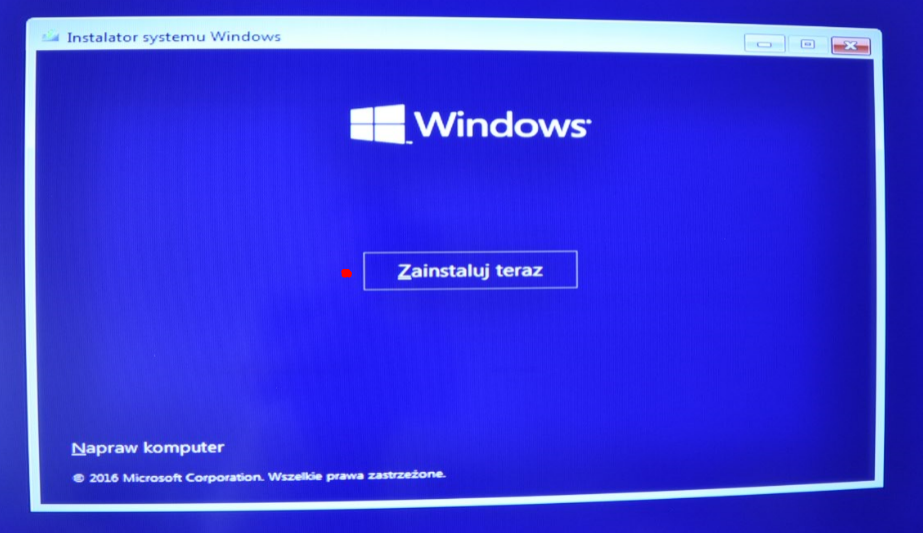
- In the next stage, simply click Install now and wait for the installer to perform the necessary operations.
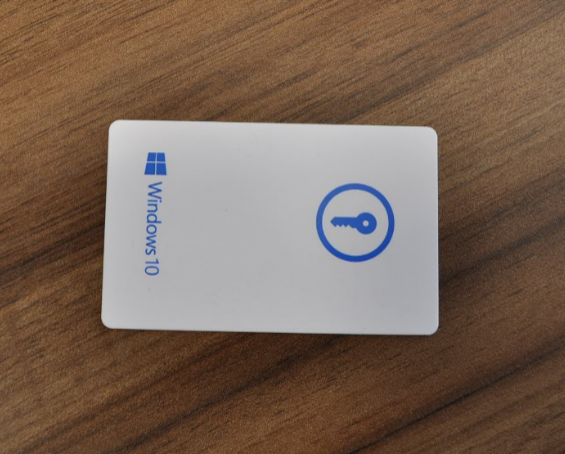
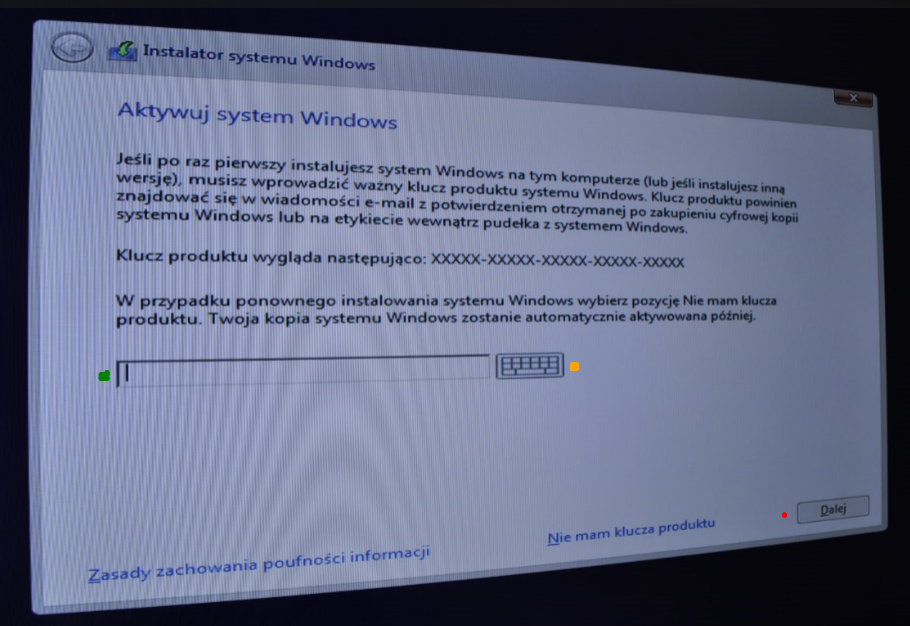
- At this stage, we must enter the product (license) key. It should be copied from the plastic card attached to the Windows 10 system. For typing, we can use the keyboard connected to the OPS computer or the on-screen keyboard, the button for which is located next to the product key field. Attention! You can skip the product key entry stage and run a trial version of the system (time-limited). The key can be entered later in the Windows system settings. Instructions HERE. After entering the key, click Next.
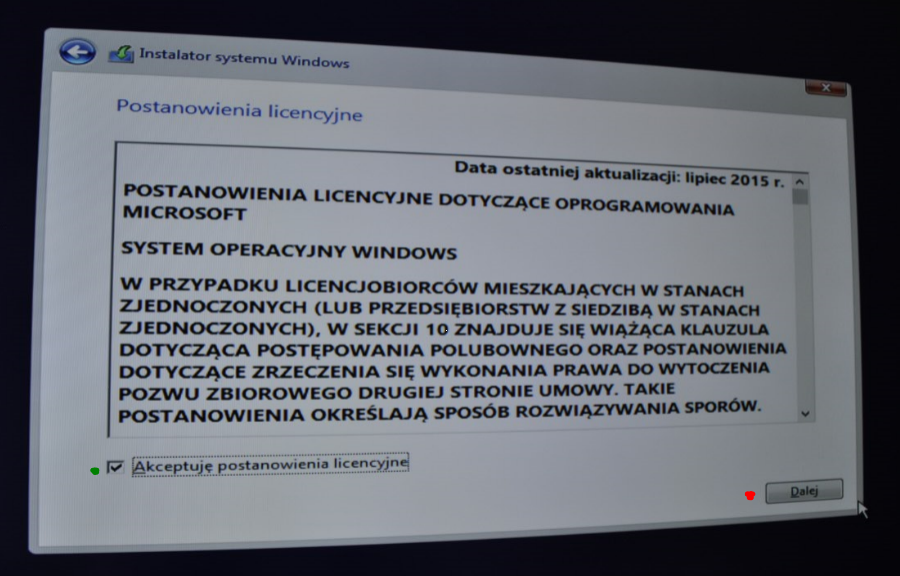
- Accept the license terms and click the Next button.
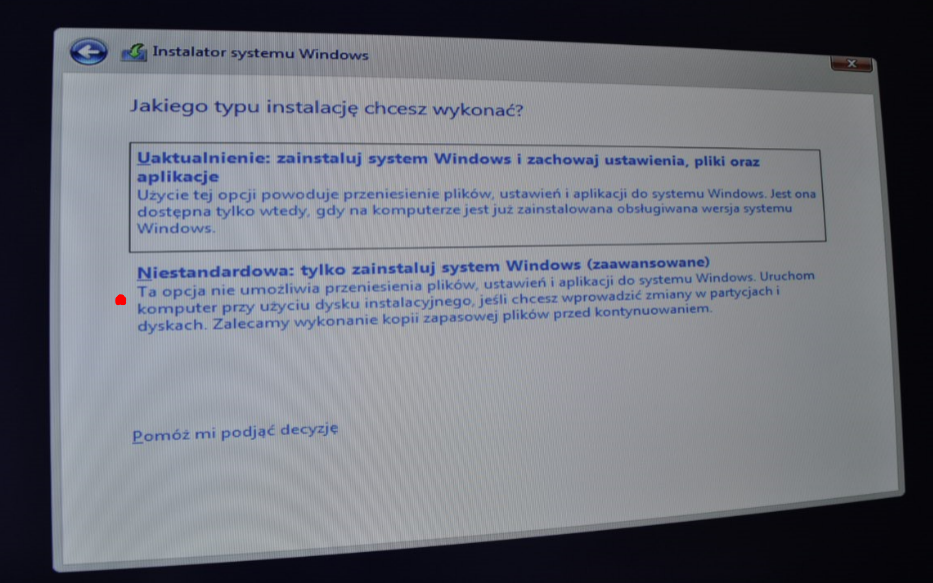
- In the next window, select option number 2 (Custom: install Windows only), which will allow you to perform a clean installation of the Windows system.
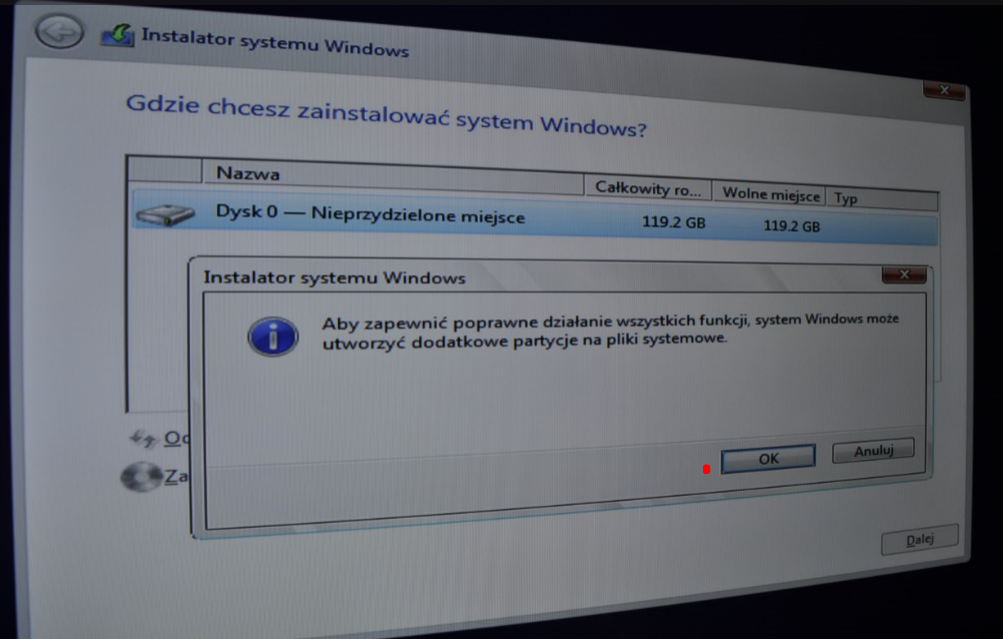
- In this part of the installation, we must allocate disk space for our system. It is not difficult. To start, select Disk 0 (the capacity should be around 119 GB), and then click the New button.
In the window that appears (To ensure all features work correctly…), click OK.
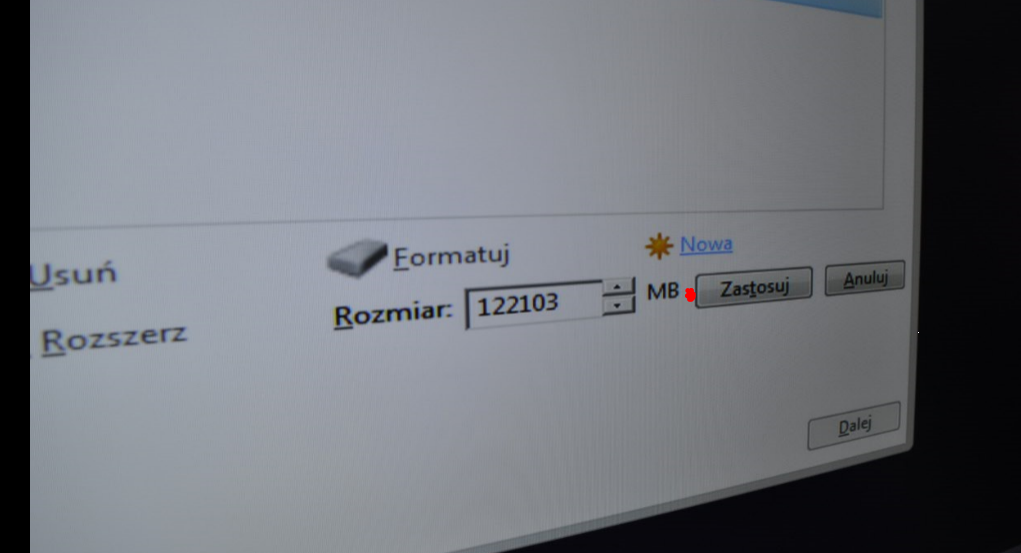
Then a table will appear with the option to choose the disk space size. We suggest not changing the values and simply clicking Apply. This will create a single partition the size of the entire hard drive.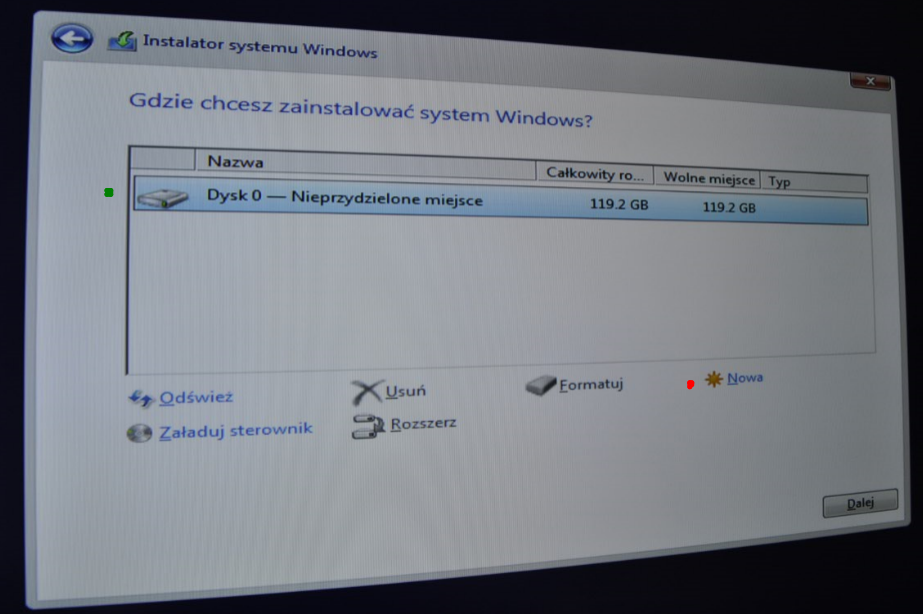
- In the selection field, two partitions should appear – you must select (highlight) the Primary type partition. It will be significantly larger (size approx. 118 GB) than the other partitions. After selecting, click Next.
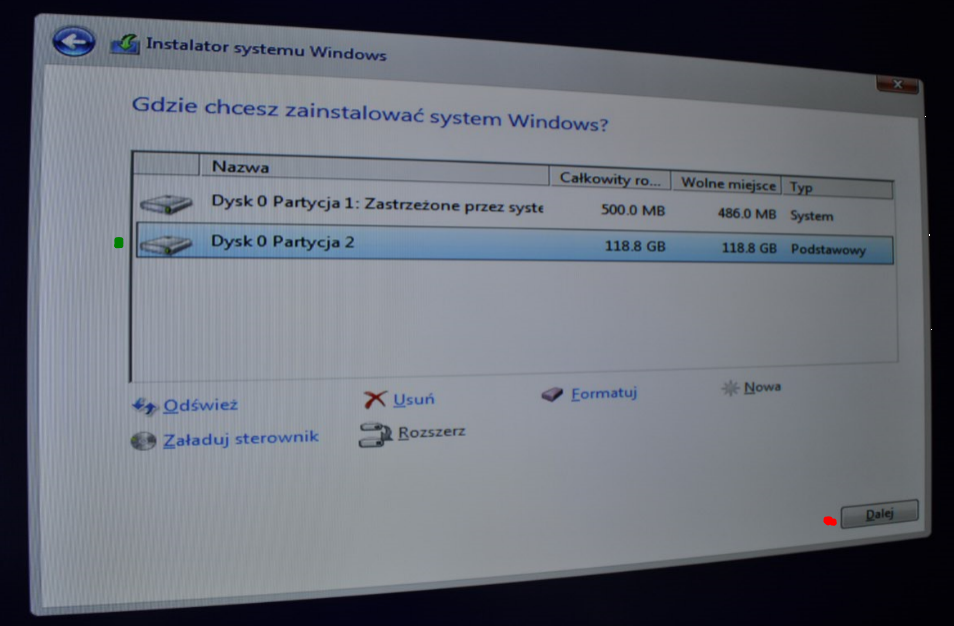
- The Windows system begins installation! This process may take a while, but it does not require our intervention. After completing this stage, the computer will automatically restart. After restarting, the installed Windows system will launch, which will guide us through a short configuration process at the start.











… and that’s it!
Questions and answers
- I have the Windows system on a disc and I have a portable DVD drive connected via USB – will it work with the Avtek monitor?
Answer: Yes, it should work without any problems as long as it is a HID-type device. We go through the entire remaining installation process as described above..
- What USB drive is required to create a bootable USB drive?
Answer: A USB drive with a minimum capacity of 8 GB.
- My keyboard doesn’t work and I can’t enter the Boot menu, why?
Answer: Please connect the keyboard to a different USB port and make sure it is an OPS computer port. There is also a chance that the keyboard is not a HID solution – we suggest using a different keyboard. If the keyboard has so-called function buttons (Fn) that cause the F1-F12 buttons to have dual functions – it is worth trying to press the Fn and F7 keys simultaneously to bring up the Boot Menu.
- I have Windows 7 / 8.1, will the installation process look the same?
Answer: Yes, systems from Windows 7 and up are installed in almost the same way. The few changes are minor enough that the above guide can still be considered effective.
- In the source change menu, it doesn’t detect the OPS computer, I can’t switch to it, what should I do?
Answer: Please make sure the computer has been correctly placed in the OPS slot. If there are still problems despite this, please contact our service department. Data below.
- When I switch to the computer in the source change menu, a No signal message appears. What to do?
Answer: Please try to reinstall the OPS computer in the slot (remove and re-insert). If that doesn’t help, please contact our service department. Data below.
- Which Windows 10 distribution should I choose?
Answer: It doesn’t matter much for installation and further operation of the system using the touch screen. The Avtek monitor will work without problems with all versions: Home, Pro, Enterprise, or Education.
In case of any problems not described above, we recommend contacting our service department.