
Revolabs FLX UC500 – how does it work?

Among the many audio products from the Revolabs brand, conference phones certainly stand out. Today we will configure the basic model from the offer – the FLX UC500. Enjoy the read!
The American manufacturer of audio solutions for conferences created the FLX series (short for flexibility) to improve communication between teams that use video conferencing applications to communicate. The direction is definitely correct, as according to the Video Conferencing Market – Global Industry Analysis, Size, Share, Growth, Trends and Forecast 2015 – 2023 report, the video conferencing market based on dedicated applications or cloud solutions is set for solid growth in the coming years.
It has long been known that a laptop, and especially its built-in microphone and speakers, are not sufficient when more than 2-3 people participate in a video conference. To avoid unnecessary problems and streamline the entire process, tools are needed that will allow for achieving maximum audio quality – in most cases the most important element of communication.
Hence, the device responsible for sound handling will often play a key role in the hardware configuration. The most important thing in this case will be for the equipment used to provide high-quality microphones – collecting voice regardless of the direction and distance from which it reaches the device (so-called omnidirectional), and speakers adapted not for playing music, but for the best possible reproduction of human speech.
Therefore, today we will configure and test a device that solves the above problems – Revolabs FLX UC500.
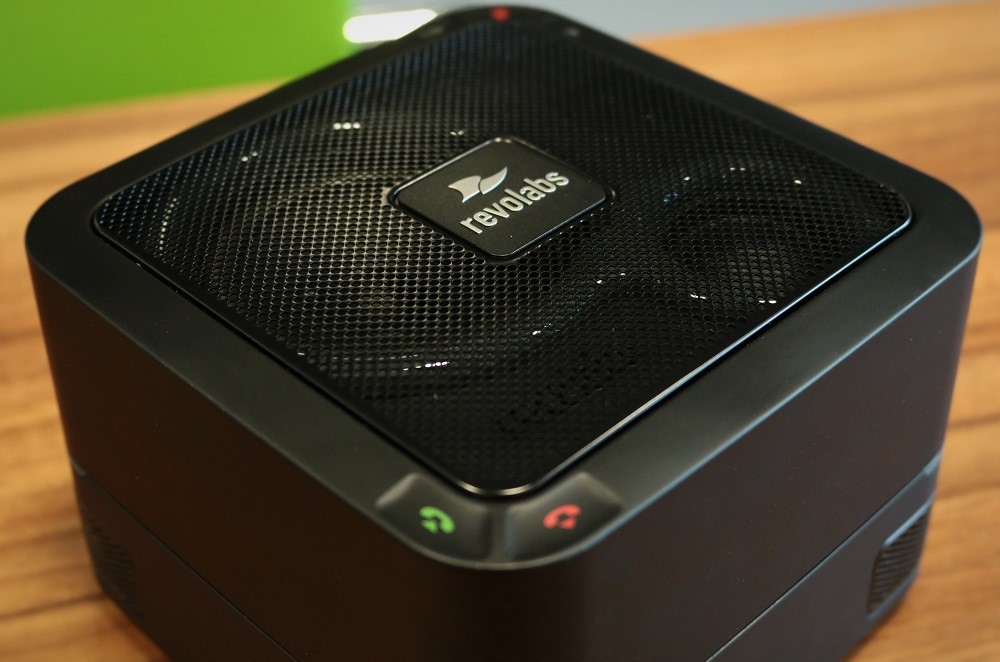
What is the FLX UC500 in a nutshell?
The Revolabs solution is a conference phone connected to a computer that has 4 high-class microphones and speakers. We connect the device with a USB cable (+ separate power supply) to a computer based on Windows, Mac, or ChromeOS.
Full specification of the FLX UC500
System configuration (Windows system)
To start, let’s try to configure the UC500 as the default speaker in Windows. This will cause sounds to be played from the Revolabs device, and not, for example, from built-in speakers or connected headphones.
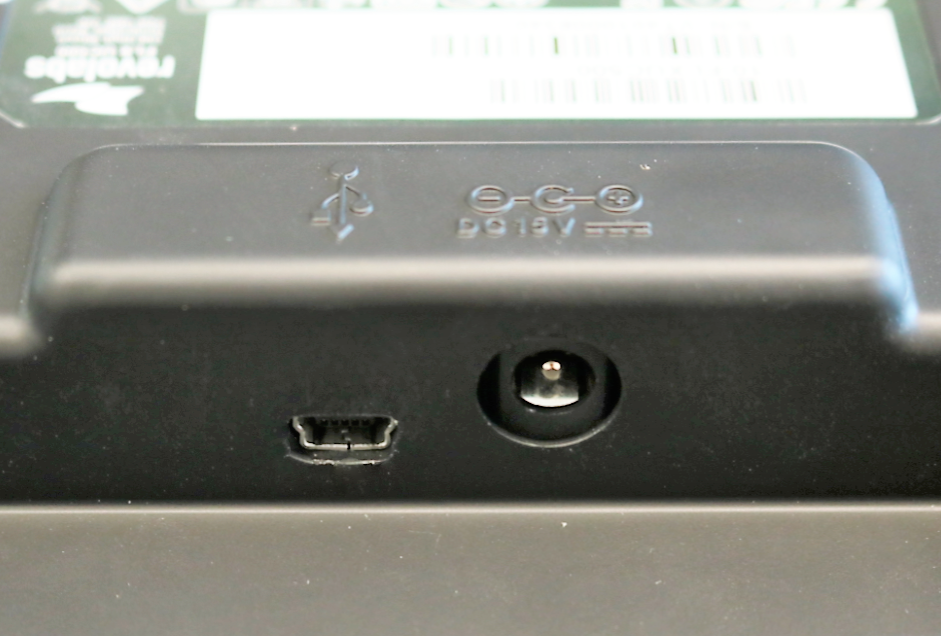
1. Connect the UC500 to the computer using a USB cable and connect the power supply (both cables are included in the set)
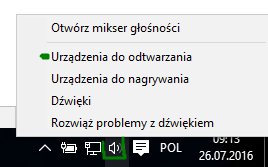
2. Right-click on the speaker icon in the system tray and select playback devices
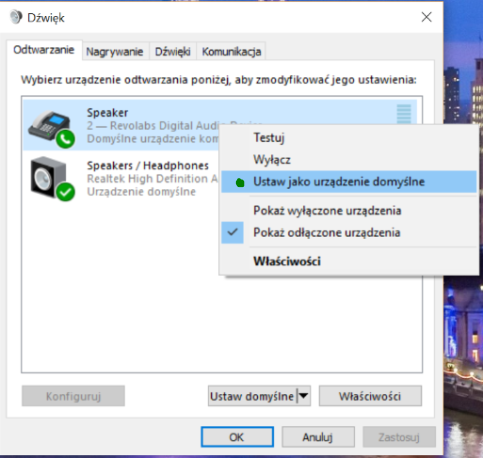
3. Right-click on the Revolabs item and select the Set as default option
If we want to set the UC500 as the default microphone in Windows, we repeat the above steps, selecting the Recording devices option in step 1.
Application configuration (using Skype For Business as an example)
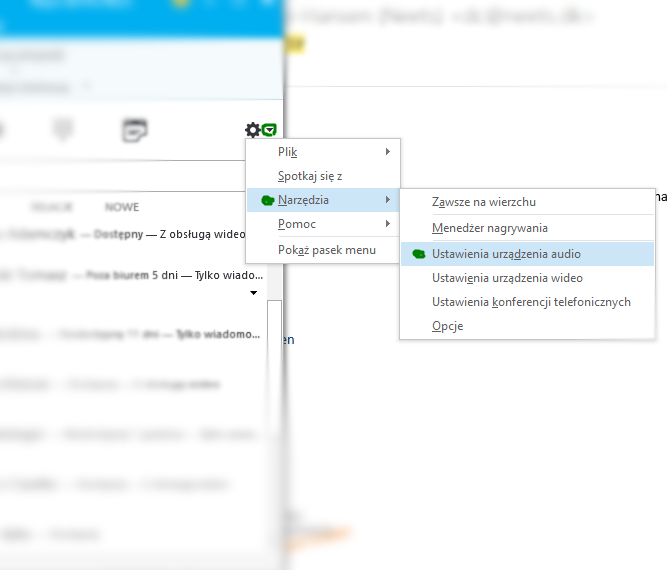
1. In the main window of the Skype For Business application, click the expansion next to the gear icon, then Tools and Audio Device Settings
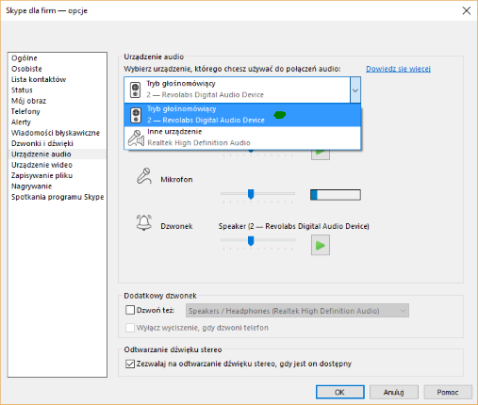
2. Then, from the drop-down list, select Revolabs as the audio connection device and click OK. In this window, we can also test the microphone and speakers.
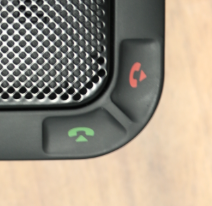
Our FLX UC500 should now be ready to work – we recommend making the first call to check its quality. Additionally, if we want to use the buttons on the casing responsible for answering and rejecting calls – we suggest installing separate drivers available on the Revolabs website.
FLX™ UC Windows Device Manager 1.2.0.97 (Windows Utility)
FLX™ UC MAC Device Manager Software 1.2.42
FLX™ UC Chrome Management App 1.0.12
Audio alone is not everything!
In our offer, you can find a few more products that will perfectly complement the FLX UC500. Below are proposals for several basic sets for tele- and video conferencing, each of which contains the described Revolabs solution.
1. Avtek TouchScreen Pro + optional OPS. The perfect display for a conference room. The Avtek monitor shows its full power after installing an OPS computer to which we can connect the FLX UC500 via a USB cable. Let’s add Skype for Business installed, and we have a great tool for teleconferencing, where Skype can be operated using the touch screen, and the speaker will be heard regardless of whether they are at the monitor or at the conference table.
2. Laptop + Microsoft Wireless Display Adapter. If we want to connect our computer wirelessly to a display (e.g., an Avtek monitor), the new tool from Microsoft will help with this – convenient and ensuring very good image quality. We connect the Revo product to the laptop via a USB cable, which provides high-quality audio, and we can already make Skype calls!
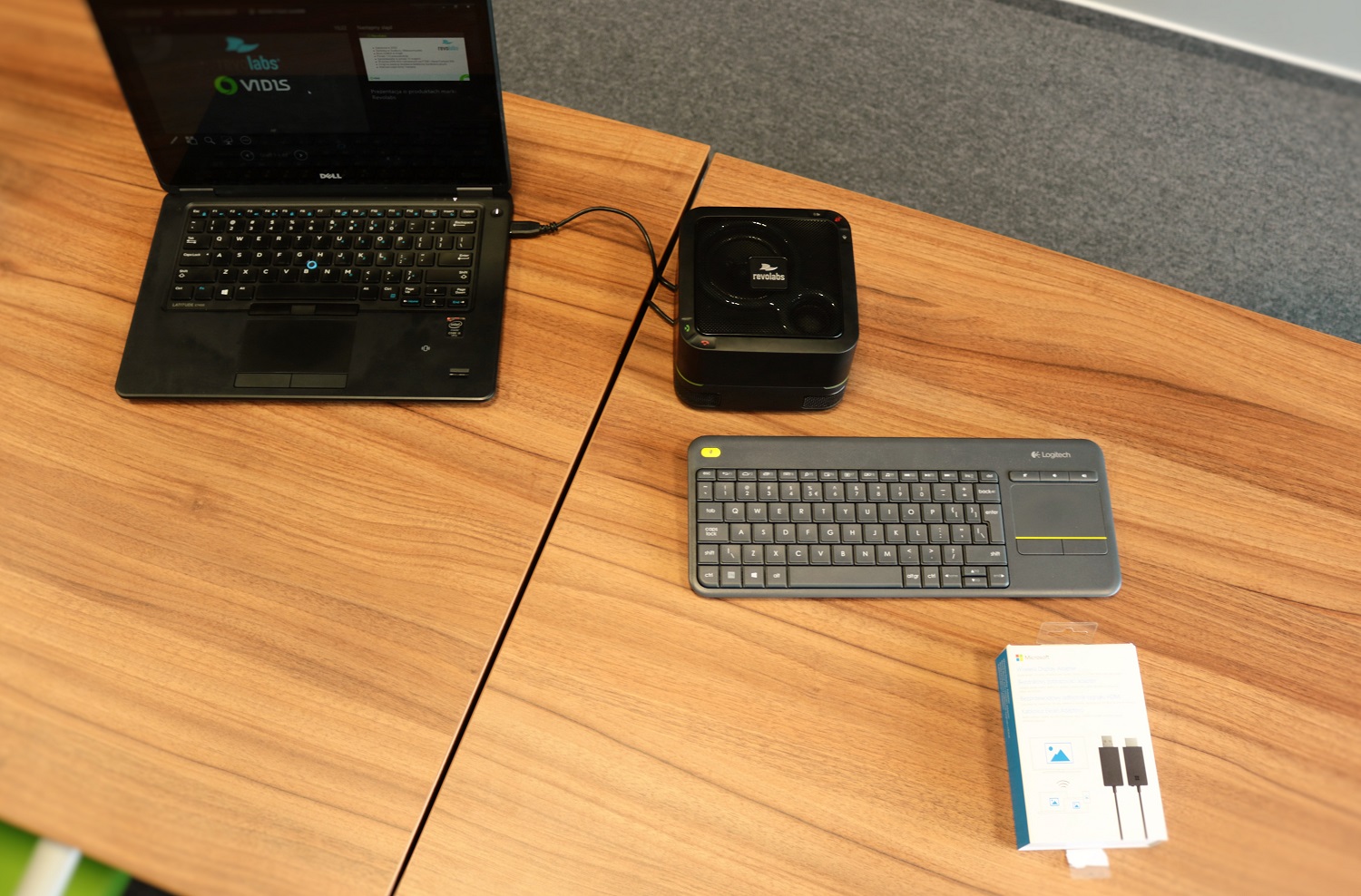
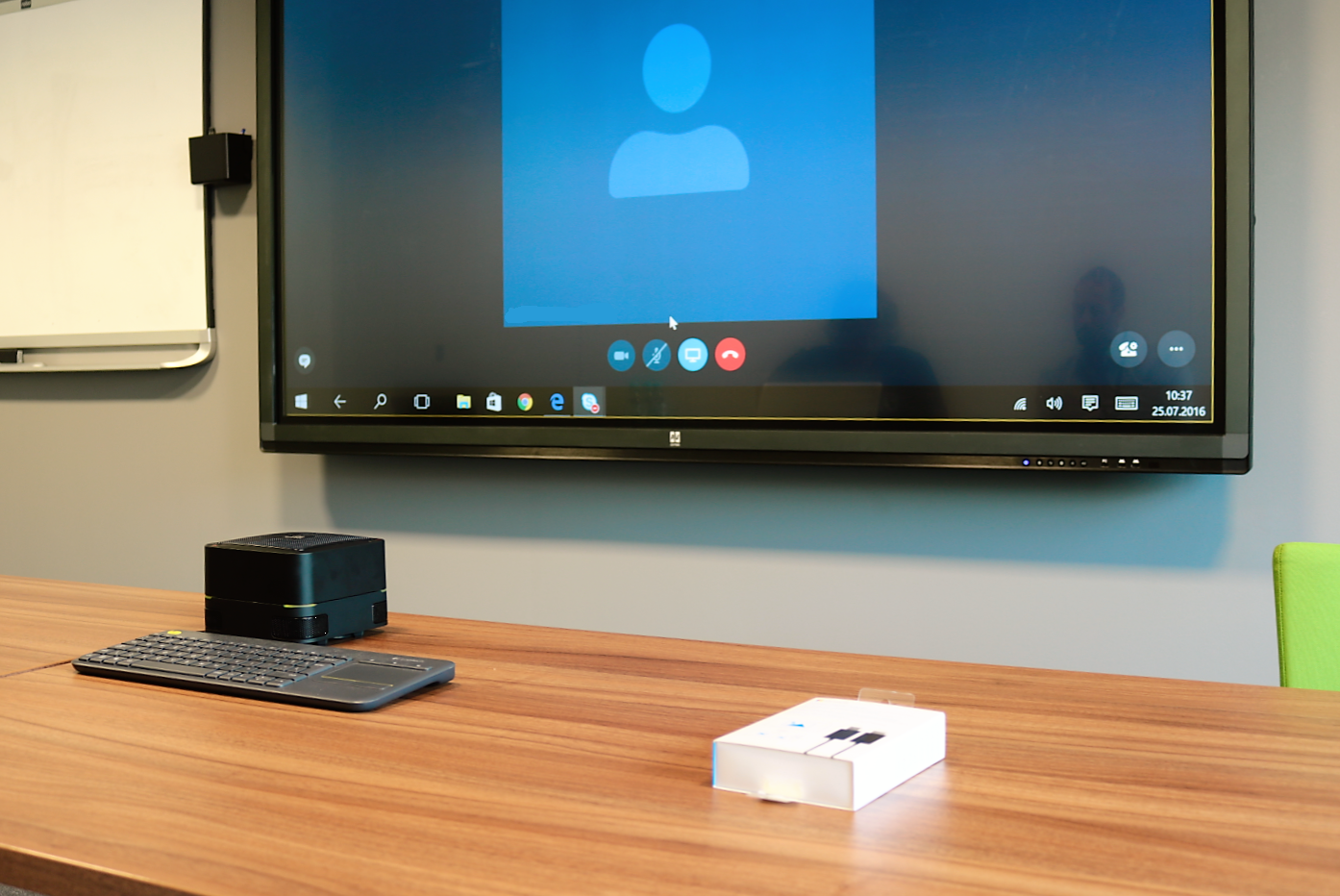
3. Avtek Meeting Cam + Avtek TS Pro monitor + optional OPS computer or laptop with Microsoft Wireless Display Adapter. The FLX UC500 from Revolabs is responsible for high-quality sound, the Meeting Cam camera provides a wide-angle image from the conference room, and everything is displayed on the Avtek TS Pro monitor. If we are not using an OPS computer, we will connect the laptop to the monitor wirelessly using the MS Wireless Adapter. The result is a universal video conferencing station ensuring the highest audio and video quality.
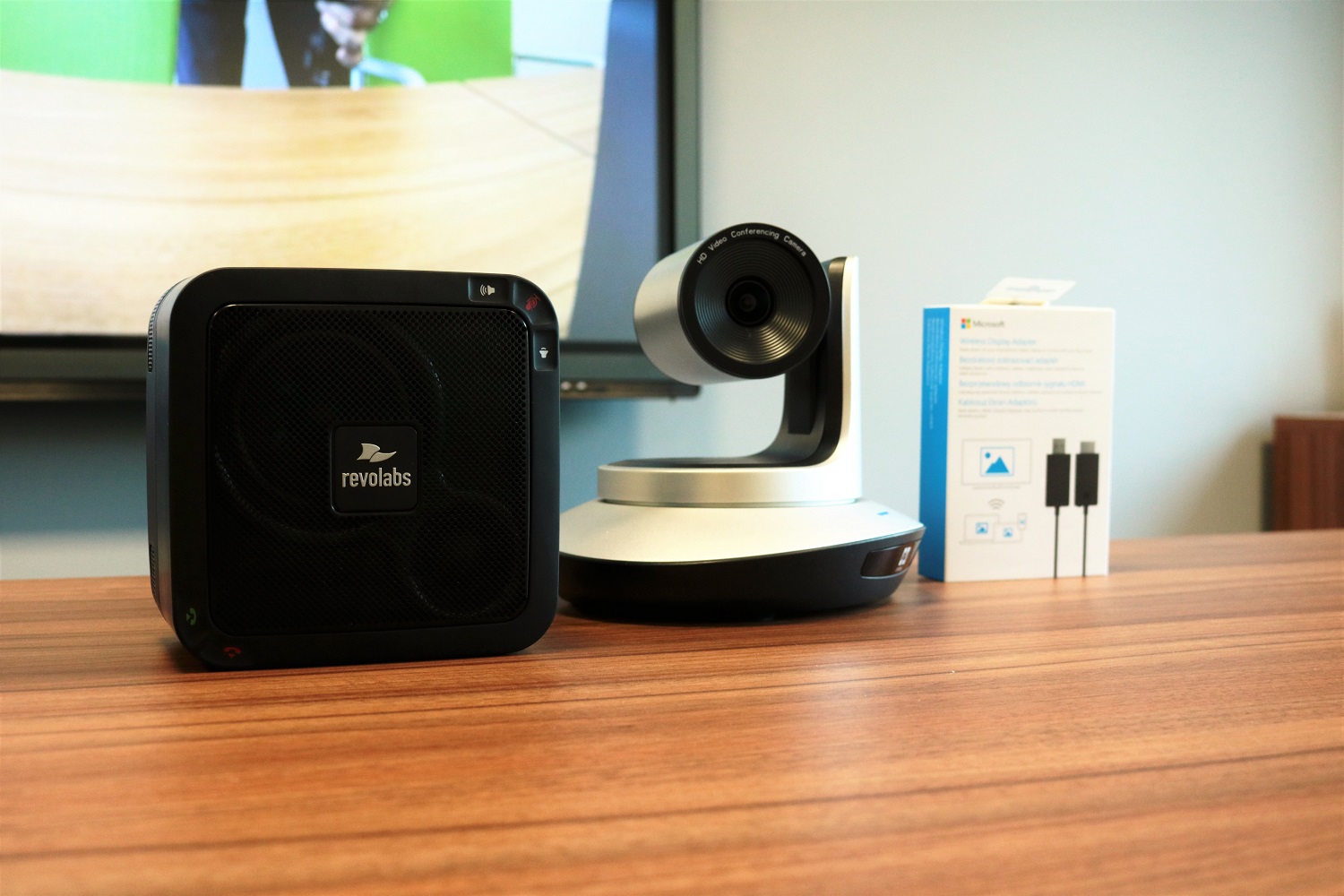
We hope we have inspired you to create your own set guaranteeing the highest audio and video quality.
If you have your own ideas for sets using our equipment – let us know, and we will definitely post them on the blog!