
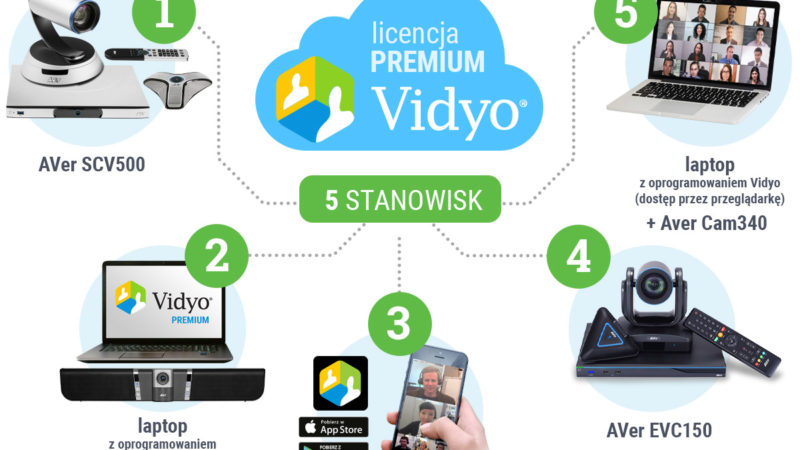
Cloud-based video conferencing

Which set will provide the best connection quality?
Thanks to the popularization of cloud solutions and the migration of a large number of services to the “cloud,” many activities that previously required an Internet connection have become much more accessible and easier. Video conferencing services undoubtedly belong to this group.
You can read more about cloud video conferencing, its advantages and disadvantages, in the first part of the article – Business and video conferencing systems, part one – terminal or cloud?
Video conferencing using a laptop or mobile devices is an increasingly popular form of business communication. This is not surprising, as practically any device with Internet access is enough to establish a video connection with any place on Earth. Several factors contribute to the quality of such a connection, and if video conferencing is becoming an official communication platform in a company, it is worth considering each of them.
In this guide, we will discuss selected elements of a video conferencing connection and try to suggest what to choose (especially in the audiovisual layer) so that the final effect meets expectations. We will not, however, focus on the network and Internet access, assuming that the target environment already has these elements.
The guide was developed mainly based on the use of Aver, Lumens, Yamaha brand devices and MS Teams and Vidyo systems.
Video conferencing device
Read: the device that will be used to establish video conferencing calls. It can be a laptop, an OPS computer built into an Avtek interactive monitor, a mobile phone, or a tablet. With the right application, any of these devices can become a video conferencing endpoint.
Mobile devices
Practically every phone and tablet has a built-in microphone and camera. Downloading the appropriate application from the Play Store or App Store should also not be a problem. This is sufficient to establish a video conferencing call, especially if the person participating in the meeting is outside the company office or is on the road. Can we advise anything here regarding the choice of a phone or tablet for video conferencing? Unfortunately not. However, it is worth paying attention to the quality of the speakerphone so that the audio communication meets the minimum requirements. If its quality is insufficient, however, can we improve it? Of course!
How to support mobile devices in business communication?
A phone in speakerphone mode may be a sufficient solution, but only if it is used by one person. And not always. However, there are devices that significantly improve the audio layer of a video conferencing call established via a phone or tablet.
Recommended support: Yamaha YVC-200
The YVC-200 model is a pocket-sized speakerphone equipped with a battery and Bluetooth communication. These two elements allow for quick pairing with a phone/tablet (also a laptop) and, thanks to the built-in battery, enable the use of the equipment even if there is no access to constant power. What are the benefits of this? First of all, boosting the audio sphere of the connection:
- greater volume is available, as well as a clearer, more understandable voice coming from the speaker;
- better microphone range on the user’s side. The omnidirectional microphone in the YVC-200 allows for uniform voice recording within its range, regardless of the positioning relative to the device;
- mechanisms improving the reproduction and recording of the human voice. The YVC series is equipped with a number of mechanisms aimed at improving the quality of the reproduced and recorded human voice. Noise cancellation, interference elimination, or automatic volume level adjustment are there precisely so that business communication proceeds without disturbances;
- convenient call management buttons. On the YVC-200 housing, there are buttons for quick microphone muting, volume control, or answering calls. Thanks to them, operating these functions is faster and does not require picking up the phone and searching for them in the application menu. This is a detail that employees who frequently participate in video conferencing will appreciate;
- small dimensions and the included case allow for trouble-free transport. This is a good solution that will not take up much space during business trips.

What about video?
There is no simple solution here – in most cases, the user is dependent on the camera built into the mobile device. Connecting an additional camera to a phone or tablet is not a very common solution. Theoretically, any plug-and-play USB camera can be connected to Android phones using appropriate adapters, but in practice, this is more of a curiosity used by enthusiasts and power users. It is also worth mentioning that video conferencing using a mobile phone often takes place on the road, where the phone is connected to the Internet via a GSM network, which can be unstable, and additional fees may be charged after exceeding data limits. Therefore, in most mobile conferences, it is worth focusing on audio. If we want to create a proper video conferencing environment, it is best to look into sets with a computer to which a camera can be connected.
Laptop brought to the conference room
This is one of the most common cases in companies – a meeting room, and in it a monitor or projector to which you need to connect to display an image. In the case of a meeting that requires establishing a video conference, the appropriate software is launched on the laptop: Skype, Teams, Zoom, or Vidyo. And again – if there is one person on our side – the camera and microphone built into the laptop should be enough to conduct the meeting. However, if the meeting includes a larger number of people, the basic configuration may be insufficient – the microphone in the laptop is directional and has a small sound pickup area, the camera usually offers low image quality, and the speakers (unless we have connected to external audio) are simply too quiet.
How to support laptops in business communication?
If the laptop is used in the same mode as mobile devices, it is worth considering a similar direction of expansion – Yamaha YVC-200, which will provide good quality audio for teleconferencing. If we also need to boost the video layer, it is worth considering an investment in a special camera.
Recommended support (for portable applications): Lumens VC-B10U
VC-B10U is a wide-angle camera with a built-in microphone. Due to its design, it is ideal for mounting on a monitor frame or laptop screen. It connects via USB 2.0/3.0 and will work without problems with any laptop regardless of the system: Windows, MacOS, or ChromeOS.
What are the benefits of the laptop + video conferencing application + Lumens VC-B10U set?
- High video quality regardless of conditions. The Lumens camera will handle any type of lighting.
- Wide-angle lens (110 degrees horizontally!) – ideal when used at a wide table where a laptop with a running video conference is placed, and several people are sitting in front of it. The Lumens lens will ensure that all people are in the frame, and the built-in microphone will improve audio quality compared to the solution built into the laptop.
- It can work in a set with Yamaha YVC-200. If the video conference is to stand out not only in the video layer but also in the audio, you can use the YVC-200 to support the Lumens. The Yamaha can be connected via USB or wirelessly, which makes it easy to configure the video conferencing application so that the video is recorded by the Lumens, and the YVC speakerphone is responsible for the audio.
Check out the Lumens VC-B10U camera in action!
Recommended support (for permanent applications): AVer VB342
If the planned configuration for video conferencing is to be permanent, but the user with their own laptop is to connect to the display and launch the video conference, it is worth choosing a solution that will simplify the entire process, e.g., by reducing the number of cables to connect. Such a solution will be the AVer VB342 with DisplayLink technology.
How does DisplayLink work?
This technology allows you to connect the entire system to a laptop: a monitor or projector and a video conferencing system using a single cable – USB 3.0. This cable, responsible for two-way communication, will:
– send an audio-video signal from the laptop to the VB342 unit, and from it, an HDMI cable will go to the monitor, which will display the image; audio can be played from the AVer speakers;
– transmit the image and audio recorded by the VB342 unit to the laptop with the video conferencing application.
DisplayLink is simplicity – one cable instead of connecting an HDMI cable and a separate USB cable to get a connection with the VC set. It is worth mentioning that not all laptops may support this function, especially older models that do not have an HDMI output and a USB 3.0 connector.
Besides DisplayLink, the AVer VB342 also offers very good video and audio quality. The form of the speaker panel makes it fit perfectly if we mount it under a TV. What other functions does the AVer soundbar hide?
- The camera in the VB342 model has a wide-angle lens, which is supported by a PTZ mechanism. This makes the AVer suitable even for narrow rooms, where the set is mounted on a longer wall – there will then be no problem with capturing all people in the lens – even those at the edges.
- The built-in speakers and microphone constitute a very good team, whose goal is to provide the best possible audio layer. If the three-meter range of the built-in microphone proves insufficient, the VB342 soundbar can be expanded with an additional wired microphone.
What is the PTZ mechanism?
PTZ (Pan-Tilt-Zoom) means the ability to move the camera lens in three planes – horizontal, vertical, and with zoom. PTZ cameras, also called rotating cameras, have a mechanism that allows for remote movement of the lens so as to direct it in the desired direction. Lens control can be done using a remote control, a control panel, or special software. This type of camera allows one person to control even several cameras, which makes these types of cameras often used in broadcasting, professional recording, e.g., of municipal council sessions or lectures, as well as during video conferences.
Desktop computer or computer built into a monitor
More and more often in meeting rooms or conference rooms, you can find a ready-made solution for presentations – e.g., a projector with a permanently connected computer or an interactive monitor with a built-in OPS computer. The latter option is particularly interesting, especially if we mount a monitor with a built-in computer on a mobile stand with a camera holder. A truly multimedia – and mobile – set is then created, which can be conveniently moved between several rooms. Such sets (both mobile and stationary) work great when someone wants to come to a meeting with a flash drive and easily show documents, photos, or conduct a presentation. But will it work in a video conference? Absolutely!

How to support such a set in a video conference?
In the vast majority of cases, we will be dealing with a computer that has the Windows system installed, or it will be a Mac. In any case, this gives us a very large field for action. On each of these systems, we can easily run the most popular video conferencing applications, such as Skype, Teams, Zoom, or Vidyo. This allows us to focus on choosing the right accessories that will build a high-quality audiovisual layer of the video conference.
Recommended support (for smaller rooms): Yamaha CS-700AV
This “all-in-one” video conferencing soundbar is a great solution for small rooms that are intended precisely for remote meetings. The CS-700AV is great audio (after all, it is the Yamaha brand) in the form of a microphone that recognizes and focuses on the person speaking, and speakers optimized for voice reproduction. On top of that, there is a good, wide-angle camera with a 120-degree field of view – thanks to which the frame is wide and more people will fit into it. What else?
- The CS-700AV has a LAN connector – connected to the local network, it gives access to convenient configuration via a browser.
- If the built-in microphones are insufficient, the CS-700AV can be equipped with external microphones to be placed on the table.
- Built-in Bluetooth, which enables wireless connection with a phone and audio support for teleconferencing.
- There is a possibility of mounting on a mobile stand, under the monitor.

Recommended support (for larger rooms): AVer VC322
When the conference room is slightly larger and people are far from the screen, it is worth supporting the video with an appropriate camera. The VC322 is a set containing a PTZ camera and a separate, wired speakerphone. The whole thing connects to the computer with one USB 2.0/3.0 cable. What else is included in the package?
- PTZ camera with the possibility of ceiling mounting and programming and quick calling of several lens positions, e.g., from the included remote control or free AVer software.
- Tabletop speakerphone with omnidirectional microphones with an effective range of 3 meters – it works well when placed, e.g., in the middle of the table. It has a built-in speaker.
- Convenient buttons on the speakerphone housing allowing for quick muting of microphones or increasing the volume.
- There is a possibility of mounting on a mobile stand, the camera is on the top shelf above the monitor, the microphone – e.g., on the bottom shelf.
“Best of the best” set for really large rooms: AVer Cam540 and Yamaha YVC-1000
Certainly, there are situations where it is required to use equipment that will meet very high user expectations; where the budget will play a secondary role, and the ordering party will want to have a solution that will provide something extra. In this case, it is worth paying attention to a set consisting of absolutely the most interesting products for video conferencing with the AVer and Yamaha logo. In this combination, the AVer Cam540 will be a professional video conferencing camera, and the Yamaha YVC-1000 will be responsible for high-class audio. A properly set up and configured set will meet the most demanding expectations.
What benefits will such a combination bring?
- Aver Cam540 is a PTZ camera with the SmartFrame function; it is responsible for automatic analysis of the environment and selection of the frame so that all video conference participants are visible. Thanks to the PTZ mechanism, you can also easily skip tracking and direct the lens to the place where it is needed.
- The set includes a wall mount that will allow you to mount the camera in the required place in the conference room.
- YVC-1000 is a complete solution when it comes to audio support for video conferencing. The main unit is equipped with good-class speakers to support volume, and if that is not enough – audio outputs are available.
- In the set with the Yamaha, there is a separate, cable-connected microphone. What’s more – the number of microphones can be increased to even four and collect audio from a really large area.
- YVC-1000 has an advanced environment analysis system. Launched after setting up the microphones, it adjusts the volume and sensitivity of the set to the geometry of the room to get the best possible audio effect.
Video conferencing application
Establishing a video conferencing connection is not a problem today. There are plenty of free applications available that will fulfill the basic needs of users: Skype, Google Hangouts, or Messenger Video. However, if users expect something more than just a simple video call, it is worth turning to professional business solutions. A professional video conferencing platform must offer more than just calls. In today’s world, the ability to establish a video connection and the savings associated with not needing to travel are only part of the benefits that these solutions offer. On top of that, there is workspace sharing, the ability to share files, or connect with hardware video conferencing systems and people who do not have an application or an account on the appropriate service. In this article, we will describe two proposals.
For Office suite owners – MS Teams
There are few companies that do not use spreadsheets or do not create text documents. Hence the huge popularity of office suites, such as Microsoft Office. In the latest iterations of this suite, in addition to the Word, Excel, or Outlook known to everyone, there are also programs for online meetings – including Microsoft Teams – a true center for teamwork in the company.
MS Teams is the successor to Skype for Business, until recently a very popular messenger with a video call function. However, the current policy of the Giant from Redmond assumes a gradual departure from Skype in favor of the Teams platform. Therefore, when planning a video conferencing system in a company, it is worth focusing on a more future-proof and functional solution. Teams is also a platform for communication within the company, including: creating work teams and communication channels, file exchange, calendar, activity planning, or even integration with other Office suite programs.

But what can Teams do in the context of video conferencing?
In addition to classic chat and the ability to quickly establish a video call with people from our contacts, Teams also provides extremely interesting tools for planning meetings. A video conferencing meeting can be planned in advance, required people can be invited, a location can be selected (e.g., a conference room equipped with a video conferencing set), and notes can be added if necessary. An invitation to such a meeting will be sent to all people on the list and, after acceptance, will appear in their calendars. A conference room will also be reserved for participants from the home location.
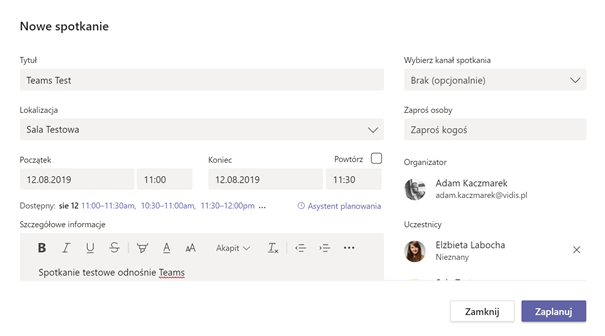
Teams also has advanced options when it comes to the video connection itself. In addition to the camera image, you can share the desktop (and, e.g., give control over it) or a specific, already running application – e.g., PowerPoint. During the call, you can also launch the Whiteboard application, thanks to which participants get a common workspace in the form of a white board. This tool works great with interactive monitors.
Thanks to applications for Android and iOS phones, as well as access via a browser, the established connection can be multi-platform. Interestingly, there is also an option to invite a person from outside the organization, which means we can open the meeting to third parties who do not have Teams or the Office suite. Note! This option is blocked by default – it must be enabled by the suite administrator.
Teams – for whom?
- For Office suite subscribers.
- For those who prefer universal, multi-tasking applications.
For companies that value quality and independence – Vidyo
Not all companies have the Office suite or aim for solutions that were created for one purpose. Such an application is Vidyo. It is a solution for video meetings and collaboration, extremely functional and focused on one goal: delivering the highest quality meetings regardless of the platform – laptop, phone, or web browser.

Vidyo integrates perfectly with hardware solutions, thanks to which you can go beyond the Vidyo environment and establish a connection with a hardware video conference of the AVer EVC/SVC or Polycom type. This is definitely one of the most universal ways to implement video conferencing calls.
What can Vidyo do?
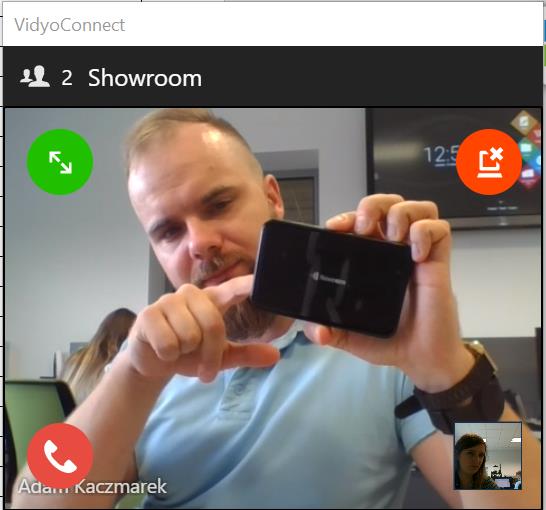
- Integration with PTZ solutions from AVer. If an AVer PTZ camera connected via USB is in the set with Vidyo, then during the meeting, participants gain the ability to control the camera using a convenient panel available in the application. Interestingly, the ability to remotely control the camera can be had by all parties to the connection. Wrocław can control the camera in Warsaw and vice versa!
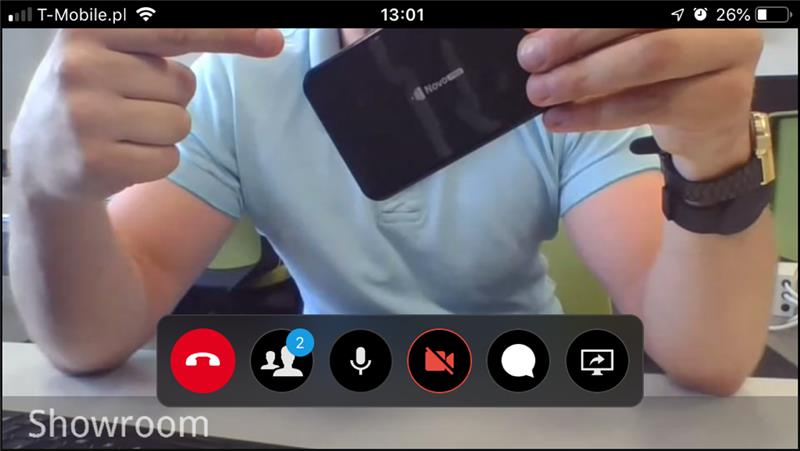
- A well-implemented module for connecting with people who do not have / do not know Vidyo. Each meeting generates a link – just send it to the invited person so that they can connect from a phone, tablet, or browser. This method does not require the user to install software, and the organizer – requests to the administrator to unlock such a possibility. This makes Vidyo a great solution for companies that use video conferencing for communication with people outside the company.
- Mechanisms for adjusting the connection to the link quality. Technologies developed by Vidyo guarantee connection stability and the maintenance of communication even when only limited link bandwidth is available.
- Possibility of recording meetings, later playback, or live streaming to YouTube (RTMP standard).
- Increased security thanks to connection encryption – Vidyo is used by institutions that prioritize security – banks or the Swiss CERN.
- Integration with Exchange and Google calendars (meeting planning function along with sending invitations).
Vidyo – for whom?
- For companies that frequently communicate outside the company, e.g., conducting recruitment or video meetings with contractors.
- For those who value solutions focused on implementing one function – additionally safe and stable.
Summary
The goal of this guide was to indicate potential video conferencing scenarios and solutions that will significantly improve such communication. We express our sincere hope that the presented proposals will fit into existing requirements and will constitute significant tips regarding the choice of appropriate devices. The form of the article made it impossible for us to indicate all available options – both devices and applications, which is why we invite you to contact us. If your project titled “video conferencing system” goes beyond the examples from the article – we will help!